


Google Product Ratings: The Complete Guide for Shopify Stores (2026)

- Google product ratings are product-level stars in Shopping ads and free listings. You need 50 reviews across your catalog and a reviews feed refreshed at least once a month.
- Matching is where most stores fail. Put GTINs in each variant's Barcode field in Shopify and keep the same identifiers in your product feed and your reviews feed.
- Send every review, flag incentivized ones, never send AI-written or copied reviews, and allow 2 to 4 weeks before stars go live.
Google product ratings are the stars and review counts that appear under a product in Google Shopping ads and free listings. They are product-level, not store-level: each rating belongs to one product, built from reviews Google can match to it. For a Shopify store, getting them comes down to three things: enough reviews, a reviews feed Google can read, and product identifiers that line up on both sides. This guide covers the requirements as Google states them today, the math for reaching the review threshold, the exact setup in Shopify and Merchant Center, and a fix-it table for when the stars do not show. If you are still building your review collection, start with our complete guide to Shopify product reviews.
What are Google product ratings?
Product Ratings is a Merchant Center program that shows aggregated star ratings on your products: one to five stars plus the total number of reviews. Google builds each rating from several sources, which its help center lists as businesses, review aggregators, review sites and Google users. So your own reviews are one input, and the stars a shopper sees can also include reviews of the same product from elsewhere.
The ratings show in Shopping ads and free product listings, in the countries where those run. That makes the program relevant even if you never pay for ads: free listings are the organic side of Google Shopping.
Product ratings vs review snippets vs store ratings
Merchants often mix up three kinds of Google stars. They come from different data and follow different rules:
| Product ratings | Review snippets | Store ratings | |
|---|---|---|---|
| What is rated | One product | One product page | Your whole store |
| Where it shows | Shopping ads and free listings | Regular organic results | Search ads, Shopping ads and other Google surfaces |
| Where the data comes from | A reviews feed in Merchant Center | Structured data on your product page | Google Customer Reviews surveys and other review sources |
| What you must do | 50+ reviews, monthly feed, matching identifiers | Markup that matches the reviews visible on the page | Join Google's store rating programs |
This guide is about the first column. The second one matters too, and most review apps handle it with structured data on the product page.
Why product ratings on Google Shopping matter
A Shopping results row is a grid of similar products at similar prices. Stars and a review count are often the only trust signal in that grid, and they appear before anyone visits your store. Research on reviews in general points the same way:
Two caveats. The Spiegel research looked at reviews on retail sites, not at Google Shopping specifically, so treat it as a direction, not a forecast. And the second finding is good news: you do not need a perfect score. A 4.6 with real reviews reads as more credible than a 5.0 from a handful of buyers, which is one more reason never to hold back your low ratings (Google forbids it anyway, see the policy section).
Move the slider to see how the same product's reviews read at each rating, and why a reply matters most when the rating is low:
Arrived fast, and it looks even better in person.
Example product · Illustrative example, not a real reviewGoogle product ratings program requirements (2026)
Here is what Google asks for today, from its Product Ratings eligibility page:
In detail:
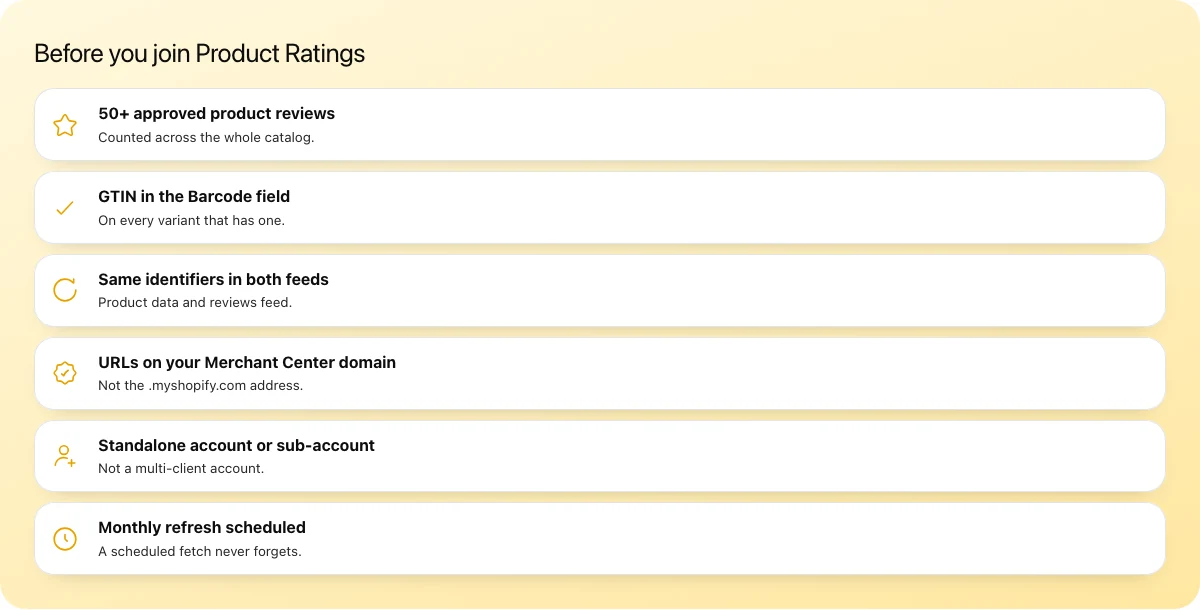
- 50 reviews across all of your products. The count is catalog-wide, not per product.
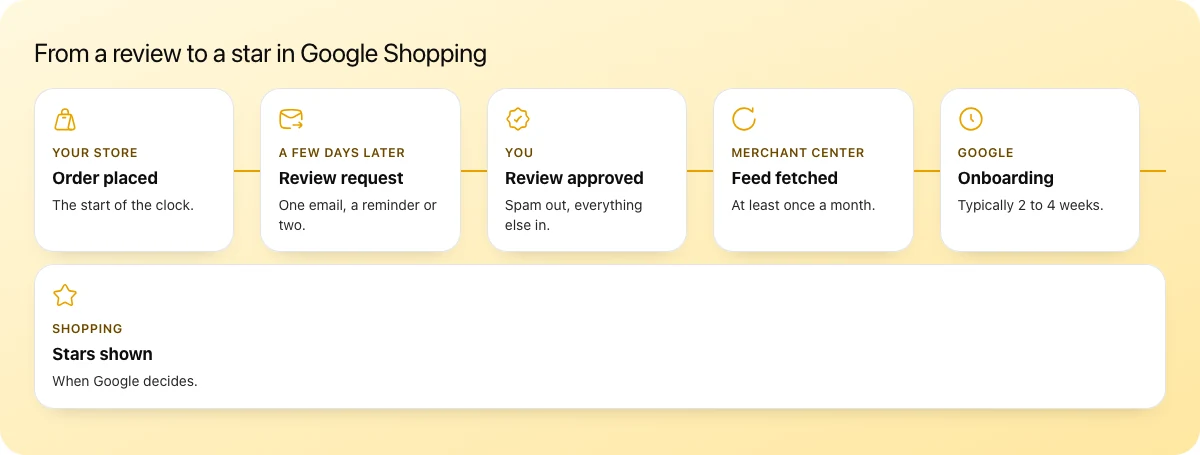
- A refresh at least once a month, with new reviews in it. Google calls a feed stale if it is not refreshed monthly or if you stop collecting reviews, and a stale feed loses eligibility.
- A standalone Merchant Center account or a sub-account, not a multi-client account, with admin access and a verified business website.
- The same domain: the product URLs in your reviews feed must match the domain registered in Merchant Center.
- Unique product identifiers in each review, ideally the GTIN, otherwise brand plus MPN, SKU or the product URL. Google says GTINs match the most reviews.
- A successful onboarding: Google's specialists review data quality and policy compliance before anything goes live.
What about a per-product minimum? Google's current eligibility page does not set one. An older Google Customer Reviews help page said a product's rating surfaces once Google has 3 or more reviews for that product, and most third-party guides repeat that figure. Treat 3 as a practical floor for the products you advertise most, and do not expect stars on a product with a single review.
How long will it take you to reach 50 reviews?
The 50-review bar sounds small until you do the math. Your monthly review count is roughly your monthly orders multiplied by the share of orders that end in a review. Divide 50 by that number and you get your timeline.
The rates in this table are inputs, not benchmarks. Measure your own over a month, then read across:
| Orders per month | If 2 in 100 orders leave a review | If 5 in 100 do | If 10 in 100 do |
|---|---|---|---|
| 100 | about 25 months | about 10 months | about 5 months |
| 300 | about 8 months | about 3 to 4 months | about 7 weeks |
| 1,000 | about 10 weeks | about 1 month | about 2 weeks |
A small store with a low review rate can wait two years. The rate is the lever you control, and these are the moves that raise it:
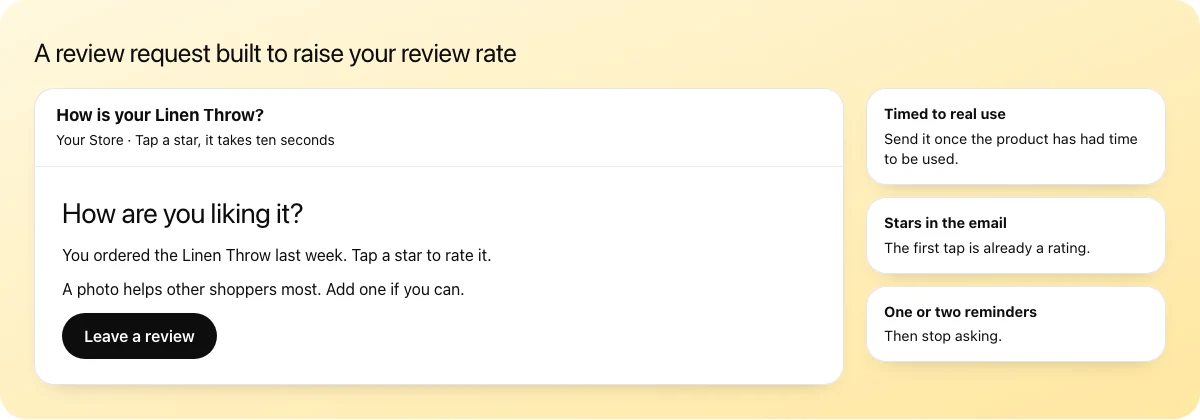
- Automate the request. A customer who is not asked rarely reviews. Time it to when the product has been used; our review request email examples give wording you can copy.
- Send one or two reminders, then stop. More than that annoys people who already decided not to write.
- Put the stars in the email so the first tap already counts, and ask for the photo after the rating.
- Ask in the right email. A review request can also sit in your post-purchase email sequence, after the shipping and how-to messages.
- Bring your history. If you already collected reviews with another app, move them over instead of starting from zero. See how to import reviews to Shopify.
How to get product ratings on Google Shopping: 4 routes
There are four ways to get your reviews to Google. Pick one and stick to it: sending the same reviews through two routes breaks Google's duplicate rule.
| Route | Good fit | Cost | Watch out |
|---|---|---|---|
| Feed from your reviews app, added by scheduled fetch | Stores that already collect reviews in a Shopify app | Usually part of a paid plan | Identifiers in the feed must match your Merchant Center products |
| Approved review aggregator | Stores that already pay a review platform | The platform's fees | It submits for you; Google can then show the Join button as disallowed |
| Manual XML file upload | A one-off test or a tiny catalog | Free | Easy to forget the monthly refresh, and a stale feed loses eligibility |
| Google Customer Reviews | Stores with no review system yet | Free | A survey opt-in after checkout, built for store ratings; product reviews need GTINs passed in the opt-in |
For most Shopify stores, the first route is the simplest: your reviews app builds the feed, Merchant Center fetches it on a schedule, and nothing goes stale as long as you keep collecting.
Several Shopify review apps can produce that feed. Trio is our product; the others are described with what their own listings say:
| App | Plan with Google Shopping reviews | Monthly price | Worth knowing |
|---|---|---|---|
| Trio (ours) | Starter and up | $29 | Feed of the 5,000 most recent approved product reviews, matched by variant SKU or barcode; email and loyalty in the same app |
| Judge.me | Awesome | $15, flat | Its free plan already includes unlimited reviews and Google rich snippets |
| Loox | Convert | $49.99 with 300 orders, then $50 per extra 300 | Photo-first widgets; free plan up to 500 orders |
| Junip | Growth | $79 | Flat prices with no order limits on any plan |
| Yotpo Reviews | Starter | $15 up to 50 orders | Price scales with orders, $129 at up to 1,000 a month |
| Growave | Growth | $199 with 1,500 orders | Also covers loyalty, referrals and wishlists |
Sources: Shopify App Store listings and vendor pricing pages, checked November 25, 2026. Prices change, so check before you buy. For a wider comparison, see our roundup of the best review apps for Shopify, and if budget is the constraint, the best free product review apps.
Set up product ratings for a Shopify store, step by step
This is the order that avoids the classic "accepted but no stars" outcome.
- Fix your identifiers in Shopify. Open each product, then each variant, and fill the Barcode field with the GTIN (UPC, EAN or ISBN) when the product has one. Give every variant a unique SKU. Your Vendor field is usually sent as the brand. For products without a GTIN, add the MPN in the product's Google & YouTube section, or mark them as custom products there.
- Check the product side in Merchant Center. Your products must already sync, with the same GTINs and SKUs. Google matches the reviews feed against this product data, so a mismatch here means reviews with nowhere to land.
- Count your approved product reviews. Store reviews (about the shop, not a product) do not count toward Product Ratings. You need 50 product reviews in the feed.
- Get your feed. Take the feed your reviews app generates, or build an XML file that follows Google's product reviews schema.
- Add it in Merchant Center. Go to Products & Store, then Reviews. Select Join Product Ratings if you have not joined yet. On the Product reviews tab, open Manage product review sources, select Add product reviews, then add reviews from a file. Choose scheduled fetch (Google's recommended method), paste the feed URL and set the frequency.
- Wait out onboarding. An "inactive" status at first is normal. Ratings typically go live 2 to 4 weeks after a successful review.
- Read the error tabs. In Reviews, then Product reviews, open your data source and check the Latest update and Data source setup tabs. Fix what they list, then request a review of the affected products.
Whatever tool builds it, each review in the feed needs the same few pieces. Here is a trimmed example with placeholders, so you know what to look for when you open your feed:
<review>
  <review_id>YOUR-UNIQUE-REVIEW-ID</review_id>
  <reviewer><name>Customer first name and initial</name></reviewer>
  <review_timestamp>2026-11-02T14:05:00Z</review_timestamp>
  <content>The text the customer wrote</content>
  <review_url type="singleton">https://www.your-store.com/products/linen-throw</review_url>
  <ratings><overall min="1" max="5">4</overall></ratings>
  <products>
    <product>
      <product_ids>
        <gtins><gtin>THE-GTIN-FROM-THE-BARCODE-FIELD</gtin></gtins>
        <skus><sku>THE-VARIANT-SKU</sku></skus>
      </product_ids>
      <product_url>https://www.your-store.com/products/linen-throw</product_url>
    </product>
  </products>
</review>
Three things to check in your own feed: the review_id stays the same from one fetch to the next, the GTIN or SKU matches your product data exactly, and both URLs use the domain registered in Merchant Center, not your .myshopify.com address.
Trio also adds product review structured data on Starter and up, which covers the organic review snippets from the comparison table, and its AI agents prepare replies for you to approve. Details are on the Trio reviews page, and plan limits on the pricing page.
Product ratings policies: what gets reviews rejected
Google reviews your feed against its Product Ratings policies and can remove reviews, block a feed or suspend an account for repeated violations. These are the rules Shopify stores trip over most:
- Send every review. Google asks for all reviews, including low ratings, and says you may not delete old reviews from the feed. Filtering out 1-star reviews is not moderation, it is a policy breach.
- The incentive must not depend on the rating. Rewards such as discounts or points are allowed, but Google requires you to disclose them with the
is_incentivized_reviewattribute in the feed. If you reward reviews, open your feed and check that the flag is there before you submit it. - No AI-written reviews. Google does not allow reviews that are primarily generated by an automated program or AI, and asks you to mark them as spam with
is_spam. AI-drafted replies from the store are a different matter; see how to automate review replies safely. - No copied or syndicated reviews. Google wants reviews you own. Reviews pulled from marketplaces or other sites do not qualify.
- One review, one feed. A review should appear once, in one feed. When you switch review apps, turn off the old app's Google feed before you add the new one.
- No personal data or links in the text. Phone numbers, email addresses, full names and links to other sites are not allowed in review content. Spam should be flagged or left out.
- Honest collection only. Reviews from employees or anyone with a stake in the business are removed.

The low ratings you keep in the feed will show up in your average. The answer is a fast, specific reply and a fix, not a filter.
Why aren't my Google product ratings showing?
When the stars do not appear, the cause is almost always one of these:
| What you see | Likely cause | Fix |
|---|---|---|
| Data source shows "inactive" right after upload | Normal during the first sync | Wait a few days; status can take 7 to 10 days to update after onboarding |
| Feed accepted, no stars anywhere | Fewer than 50 reviews, or onboarding not finished | Count the product reviews in the feed; allow 2 to 4 weeks |
| Stars on some products, not others | Identifiers do not match, or too few reviews on that product | Compare the GTIN or SKU of each variant in both feeds |
| Stars disappeared after a few months | Stale feed: no refresh, or collection stopped | Keep review requests running and the scheduled fetch on |
| URL or domain errors | Review URLs on a different domain from Merchant Center | Build the feed on your primary domain |
| Reviews or the feed rejected | Personal data, links, unflagged incentives, AI-written or copied reviews | Fix the content, then request a review of those products |
| "Join Product Ratings" is disallowed | Google sees an existing aggregator integration | Use that route, or remove it before you switch |
| Some products never get stars | Products disapproved for a policy issue, such as healthcare and medicine | Fix the product data, then request a review of those products |
Product ratings reward the boring basics: a steady flow of real reviews, clean identifiers and a feed that refreshes itself. Get the collection running first, because every other step depends on reaching 50 reviews. For the full picture of collecting, showing and answering reviews, go back to our Shopify product reviews guide.
Frequently asked questions
- How do I get product ratings on Google Shopping?
- Collect at least 50 product reviews across your catalog, then send them to Google Merchant Center as a product reviews data source, either from your reviews app's feed, through an approved review aggregator, or by uploading an XML file. Google matches each review to a product with identifiers such as GTIN, SKU or brand plus MPN, checks the data and the policies, and then decides whether to show the stars.
- How many reviews do you need for Google product ratings?
- Google requires at least 50 reviews across all of your products before ratings can show on Shopping ads and free listings. The current eligibility page sets no per-product minimum, but an older Google Customer Reviews help page said a rating surfaces once a product has 3 or more reviews, so plan for at least 3 on the products you advertise.
- How long does it take for product ratings to show on Google?
- Google's onboarding review of data quality and policy takes 2 to 4 weeks, and ratings typically go live after it. A new data source shows as inactive for about 3 to 4 days while it syncs, and the status can take 7 to 10 days to update after onboarding.
- Are Google product ratings free?
- Google's Product Ratings help pages list no fee for joining the program. What can cost money is the tool that produces your reviews feed, such as a paid plan of a reviews app or an aggregator subscription, and the clicks on your Shopping ads if you run them.
- What is the difference between product ratings and seller ratings?
- Product ratings score one product and come from product reviews you send in a feed. Seller ratings, which Google now calls store ratings, score your whole store and come from sources like Google Customer Reviews surveys. A store can have one without the other.
- Why are my product ratings not showing on Google Shopping?
- The usual causes are fewer than 50 reviews, onboarding that is not finished, identifiers that do not match between your product feed and your reviews feed, review URLs on a different domain from the one in Merchant Center, or a feed that went stale because it was not refreshed in the last month.
- Can I send reviews imported from another app to Google?
- Reviews that your own customers left on your store and that you moved from an old app are still your reviews. Reviews copied from marketplaces or other websites are syndicated content, which Google does not accept. If your old app still sends a feed, switch it off first, because each review must appear only once in one feed.
- Do Google product ratings show in normal search results?
- Product ratings appear in Shopping ads and free listings. Stars in regular organic results come from review structured data on your product pages, a separate system. In both cases Google decides when to show them.
- Do I need GTINs for Google product ratings?
- No, but they help most. Without a GTIN, Google tries to match each review with the SKU, brand plus MPN, or the product URL, which Google calls less reliable, so some reviews may not match. In Shopify, the GTIN goes in each variant's Barcode field.
- Can I leave negative reviews out of my Google feed?
- No. Google's policies ask you to share all reviews, including low ratings, and say you may not delete old reviews from the feed. A feed that only contains good reviews can be disapproved.
Related articles
How to import reviews to Shopify without losing stars, dates or photos: a copyable CSV template, product matching, legal rules and fixes. Start your i…
November 25, 2026ReviewsJudge.me Reviews Connector: How to Sync, Export or Migrate Your ReviewsNeed a Judge.me reviews connector? See when an API sync, an integration or a CSV export fits, what the export leaves behind, then migrate in 7 steps.
November 25, 2026ReviewsReview request email example: 15 free templates to copyCopy 15 review request email examples: first ask, reminders, photos, rewards and gift orders, with timing by product and FTC-safe wording. Get the tem…
November 25, 2026