


How to Import Reviews to Shopify: Step-by-Step Guide

- Export every review before you uninstall the old app, keep the raw file untouched, and import while the old photo links still work.
- Match rows by product ID or handle, convert ratings to whole stars, save as UTF-8 and test on one product before the full file.
- Import all ratings, not only the good ones, and only reviews your own customers wrote about that product. Check three numbers per product before you swap widgets.
To import reviews to Shopify, you export them as a CSV file from wherever they live now, clean the file, match every row to a product, and upload it to the review app that shows reviews on your store. The Shopify admin has no review import of its own, and Shopify's former Product Reviews app has been unavailable since May 2024, so every route goes through an app. Treat the job as a data migration you check, not an upload: this guide gives you a copyable template, a product-matching formula, the errors that break imports, and what the FTC and Google let you import. If you are still setting up reviews from scratch, start with our complete guide to Shopify product reviews.
How to import reviews to Shopify: pick the method by source
The right method depends on the source. A review app export is the easy case. A marketplace or a supplier listing raises questions you should answer before you touch a spreadsheet.
| Where your reviews are now | How to import them | What usually survives | Watch out for |
|---|---|---|---|
| Another Shopify review app (Judge.me, Loox, Yotpo, Trustoo and others) | Export a CSV from the old app, import it into the new one | Rating, text, name, date, photo links, often your replies | Photo links that stop working once the old app is gone |
| Shopify's Product Reviews app (unavailable since May 2024) | Use the CSV you exported before it closed | Whatever that export contained | Column names that differ from your new app's template |
| A spreadsheet, another platform or a custom site | Build a CSV with the template in step 2 | Whatever columns you have | Missing product identifiers, mixed date formats |
| A marketplace (Amazon, Etsy, eBay) | Only through apps that offer it, and only after reading the rules below | Rating and text | Google's guidelines on reviews from other websites |
| Your supplier's listing (AliExpress, wholesale sites) | Don't import them | Nothing useful | Reviews of another seller's order presented as yours |
Moving from a specific app? We wrote dedicated walkthroughs for moving your Judge.me reviews to another app and for exporting and importing Yotpo reviews. The rest of this guide works for any source.
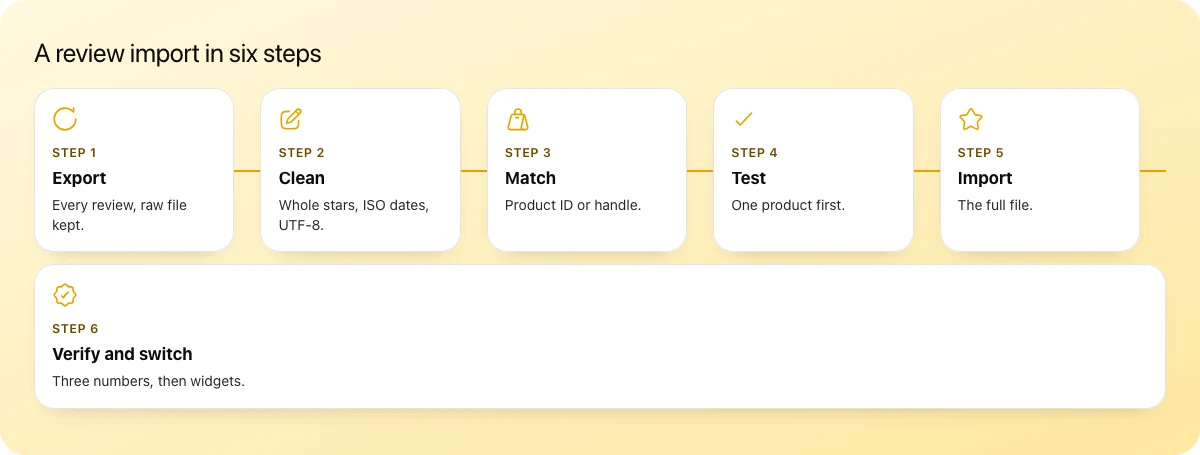
Step 1: Export your reviews and keep the raw file
The export is the only step you cannot redo once the old app is uninstalled. Treat it like a backup, not a draft.
- Export everything: published, hidden and pending reviews, every rating. You decide what to show later; you cannot recover what you did not export.
- Export store reviews separately if your app collects reviews about the shop as well as about products.
- Keep a raw copy with the date in the file name, such as
reviews-raw-2026-11-25.csv, and never edit it. Work on a copy. - Write down your "before" numbers: total reviews, average rating, and the review count of your five most-reviewed products, read from the old app's dashboard. You will compare against them in step 4.
- Do not uninstall the old app yet. Photo URLs in the export often point to the old app's servers.
If you saved a CSV from Shopify's old Product Reviews app before it closed, it is your raw file. Rename its columns to match your new app's template; do not retype the content.
Step 2: Build your review import CSV
Get the file right and the import itself is the easy part. These columns cover what review apps typically ask for. Your new app's template decides the exact header names: rename headers, never the data.
| Column | Required? | Format | Example |
|---|---|---|---|
| product_id | Product ID or handle | Shopify product ID, digits only | 8123456789012 |
| product_handle | Product ID or handle | Exactly as in the product URL | linen-shirt-white |
| rating | Yes | Whole number from 1 to 5 | 4 |
| title | No | Plain text | Fits as expected |
| body | Usually | Plain text, no HTML | Soft fabric, runs slightly large. |
| reviewer_name | Name or email | As the customer wrote it | Dana K. |
| reviewer_email | Recommended | Valid address, never shown publicly | dana@example.com |
| verified | No | true only if the old app marked a verified buyer | true |
| created_at | Yes | ISO 8601 | 2025-06-14T09:30:00Z |
| photo_urls | No | Public URLs separated by semicolons | https://cdn.example.com/r/123.jpg |
| reply | No | Your published reply | Thanks Dana, glad it fits. |
Here is a template you can copy into a plain text editor and save as .csv. The rows use fictional data, including a 2-star review, because a real file should contain those too.
product_handle,rating,title,body,reviewer_name,reviewer_email,verified,created_at,photo_urls,reply
linen-shirt-white,4,"Fits as expected","Soft fabric, runs slightly large. I sized down.",Dana K.,dana@example.com,true,2025-06-14T09:30:00Z,https://cdn.example.com/r/123.jpg,"Thanks Dana, glad the size tip helps."
linen-shirt-white,2,,"A seam came loose after two washes.",Marc T.,marc@example.com,false,2025-07-02T18:05:00Z,,"Sorry Marc, we sent a replacement."
Two columns deserve care. Copy the verified flag from the old export; never set it to true for a whole file, because a verified badge claims the reviewer bought the product. And if a review has no email, check whether your app accepts it. Do not invent placeholder addresses to get past a required field without knowing how the app labels those reviews.
Convert ratings to whole stars
Review apps store ratings from 1 to 5. If your source used another scale, convert the column before the import, so you know the result instead of guessing how the app handles it.
The table applies one rule to every row: round half up, and never go below 1.
| Source scale | Formula | Raw value | Converted | Imported |
|---|---|---|---|---|
| 1 to 5 stars | None | 4 | 4 | 4 |
| 1 to 10 points | Divide by 2 | 7 | 3.5 | 4 |
| 1 to 10 points | Divide by 2 | 1 | 0.5 | 1 (floor) |
| Percentage | Divide by 20 | 90% | 4.5 | 5 |
| Percentage | Divide by 20 | 50% | 2.5 | 3 |
| Half stars | None | 4.5 | 4.5 | 5 |
| Thumbs up or down | None | Thumbs down | No star value | Do not invent one |
Apps differ on decimals: some round, some cut 4.5 down to 4, some reject the row. Convert the column yourself so the result is yours, not the app's. Rounding half up lifts every x.5 rating, so a product's average can rise by a tenth or two; write that down before the check in step 4. Rounding down is just as valid if you prefer it. What matters is one rule for every row, and that you never change a rating for any other reason.
Dates, encoding and photos
- Write dates in ISO 8601.
03/04/2025is March 4 in the US and April 3 in Europe.2025-03-04means one thing everywhere. - Save as CSV UTF-8. If you see
éwhere an é should be, the file was saved or read with the wrong encoding. Emoji break the same way. - Quote text fields that contain commas or line breaks, as in the template above.
- Strip HTML such as
<br>or<p>from the review text. - Protect long numbers. Spreadsheets display a 13-digit product ID as
8.12346E+12, and can save it that way. Format the column as text before you paste, then check the saved file in a text editor. - Test photo links in a private browser window. A link that needs a login or has expired will not import.
Step 3: Match each review to the right Shopify product
An import that cannot match a row to a product either skips it or attaches it to the wrong page. Pick the most stable identifier you have.
| Identifier | Reliability | Where to find it | Breaks when |
|---|---|---|---|
| Product ID | Highest | The number at the end of the product's URL in your Shopify admin | The product was deleted and created again |
| URL handle | High | Products, then Export, in the Shopify admin | You edited the handle after the reviews were written |
| SKU | Medium | The same export, one SKU per variant | Variants or products share a SKU, or SKUs changed |
| Product title | Low | The product page | Two products share a name, or titles were renamed |
To get every handle at once, export your catalog from Products, then Export (Shopify's export steps). In that file, the URL handle column identifies each product; older exports call it Handle.
If your old identifiers no longer match, build a two-column mapping sheet: old identifier in column A, current handle in column B. Then fill the handle column of your review file with a lookup that works in Google Sheets and Excel:
=VLOOKUP(A2, Mapping!A:B, 2, FALSE)Rows that return #N/A are your unmatched reviews. Fix them before the import, not after. Three cases come up often:
- Products merged into one product with variants: point every old handle to the new product.
- A new version of the same item, such as a new color: the reviews still describe it, so keep them.
- A different product: do not move its reviews onto a replacement. A review shown on a product the customer never used misrepresents their experience, which is the problem section 465.2 of the FTC rule targets (see the legal section below).
Step 4: Test on one product, then import everything
Copy the header row and 10 to 20 rows for one product into a test file. Pick rows that stress the import: one with photos, one with a reply, one low rating and one with accented characters. Import it, open the product page, and check each review. Then import the full file.
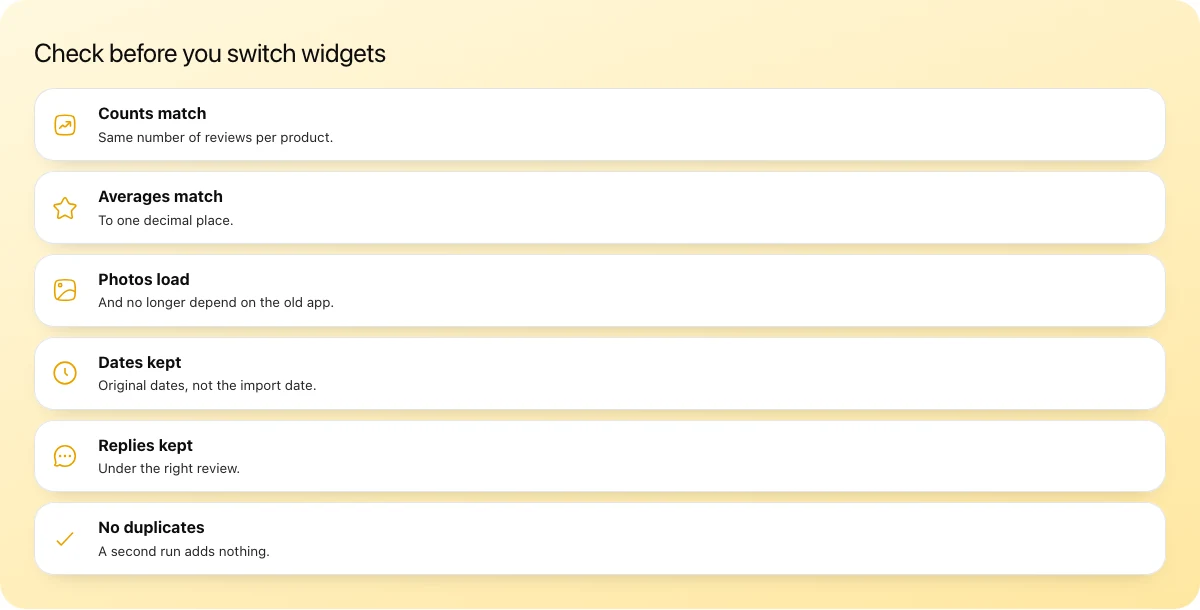
Next, run the three-number check on your five most-reviewed products and a few random ones. Compare with the "before" numbers from step 1:
- Review count per product.
- Average rating, to one decimal place.
- Photo count, with every photo loading.
If a number differs, find out why before you go further: rows skipped for errors, duplicates removed, reviews matched to another product, or an average moved by your rounding rule. A small gap you can explain is fine.
Plan the way back too. Note the time of each import run, so a bad batch can be deleted on its own and imported again once the file is fixed, instead of cleaning reviews one by one. A gap you cannot explain will show up later as a missing review that a customer remembers writing.
Trio is our app, so here is how this works in Trio's reviews module. It reads export files from Judge.me, Loox, Yotpo and Trustoo as they are, or a generic CSV, and detects the format by itself. Its web admin also reads .xlsx files. It keeps ratings, text, dates, names and photos, downloads photos from their URLs and hosts them again, detects duplicates, and accepts star-only reviews. Large files keep processing in the background.
Import is a paid feature in Trio. Here is what the first three plans include for a migration (see Trio pricing for the full table):
| What a migration needs | Trio Free | Trio Starter | Trio Growth |
|---|---|---|---|
| Review import (CSV, Judge.me, Loox, Yotpo, Trustoo) | ✗ | ✓ | ✓ |
| Unlimited reviews | ✓ | ✓ | ✓ |
| Photo reviews | ✗ | ✓ | ✓ |
| Video reviews | ✗ | ✗ | ✓ |
| Google rich-result markup | ✗ | ✓ | ✓ |
| Automatic review request emails | ✗ | ✓ | ✓ |
| Monthly price | $0 | $29 | $79 |
If your budget is zero, check the import rules of the apps in our roundup of free Shopify review apps before you choose one.
Common review import errors and how to fix them
These eight problems cause most of the trouble. Find the symptom in the left column.
| What you see | Likely cause | Fix |
|---|---|---|
| Rows rejected for an invalid rating | Empty cells, zeros, decimals or a 10-point scale | Convert to whole numbers from 1 to 5 |
| Reviews imported but missing from the product page | Product not matched, or no review block on that product template | Check the handle or ID; add the block to every product template |
é instead of é | File not saved as UTF-8 | Save again as CSV UTF-8 |
| Every review dated today | Date column missing, unmapped or unreadable | Use ISO 8601 and map the date column |
| Photos missing | URLs private or expired, or the old app already uninstalled | Import before uninstalling; test one URL in a private window |
| Product IDs that look like 8.12346E+12 | Spreadsheet scientific notation | Format the column as text and export again |
| The same review twice | File imported twice into an app without duplicate detection | Delete the second batch, then import once |
| Two different ratings in Google's Rich Results Test | Old and new apps both output review structured data | Remove the old app's blocks and app embed |
What you can legally import into Shopify
An import is the moment when it is easiest to drop the reviews you do not like, or to add reviews that are not yours. Both are risky. This is not legal advice, but three rules from the FTC and Google settle most cases.
Rule 1: import every rating. The FTC's Consumer Reviews and Testimonials Rule took effect on October 21, 2024. Its section 465.7(b) bars a business from implying that the reviews it displays represent most or all of the reviews submitted while it holds reviews back because of their rating or negative sentiment. Leaving the 1- and 2-star reviews behind in the old app is the kind of filter the rule describes. You may still exclude reviews by criteria applied to all reviews equally: abusive or obscene content, personal information, clearly false content, reviews you reasonably believe are fake, and reviews unrelated to what you sell. The FTC explains the rule in its questions and answers for businesses.
Rule 2: only your customers, only that product. Section 465.2 of the same rule targets reviews that misrepresent the reviewer's experience with the product. A review copied from your supplier's listing was written about another seller's order, packaging and shipping. Presented on your product page, it suggests an experience with your store that never happened.
Rule 3: keep marketplace reviews out of your markup. Google's review snippet guidelines say that ratings must be sourced directly from users, and: "Don't aggregate reviews or ratings from other websites." Reviews your customers left on your own store and that you moved between apps are still your reviews. Reviews pulled from Amazon or Etsy are not, so they should not feed the rating in your product structured data.
Keep the wording and dates as customers wrote them. Fix encoding, never content. Low ratings are not a liability when they carry a reply: move the slider to see how the same block reads at each rating.
Light, soft, and still looks new after a season.
Linen shirt · Illustrative example, not a real reviewIf you import a backlog of unanswered low ratings, reply to them before you switch widgets. Our guide to drafting and automating review replies shows how to keep replies short and specific. On paid plans, Trio AI drafts them in the reviewer's language and your brand's tone, and you approve them before they are published.
Migrate Shopify reviews without losing your stars: the switch order
Do the switch in this order. Each step removes one way to lose reviews, stars or customers' patience.
- Turn off the old app's review requests, so customers do not get two emails for the same order. Then turn on the new app's requests. On Trio's paid plans, the request goes out 7 days after the order by default, with up to two reminders. Our review request email examples help you write it.
- Add the new review blocks from the theme editor: the star rating near the product title and the review list below. Repeat on every product template.
- Remove the old app's blocks and app embed. Two apps that both output review structured data can show conflicting ratings to Google.
- Switch off the old Merchant Center feed if the old app sent product reviews to Google Shopping, before the new app sends one. Each review should appear in one feed only. Trio's feed matches products by variant SKU or barcode, so products without either will not carry their reviews into it. Our guide to Google product ratings covers the feed setup.
- Uninstall the old app last, once photos load from their new location, and keep the raw export file.
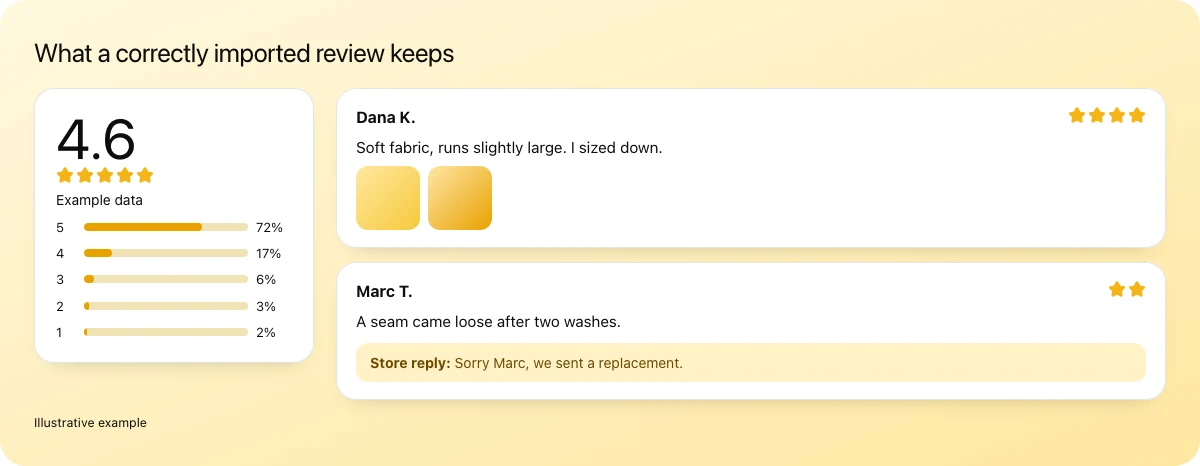
In Trio, imported ratings feed the same places as new ones. Trio writes ratings to Shopify's standard product metafields, reviews.rating and reviews.rating_count, which themes can read. On Starter and up, it adds product review structured data, and it can generate a Google product reviews feed for Merchant Center. Google still decides whether stars appear.

An import gives your product pages their history back. New reviews keep them current, so turn on requests the day you switch. On paid plans, customers can also earn loyalty points for each review, and Trio can send a thank-you email automatically. If you are still comparing tools before you migrate, read our comparison of Shopify review apps.
Frequently asked questions
- Can I import reviews to Shopify without an app?
- Not onto your online store. Shopify's own Product Reviews app has been unavailable to install or use since May 2024, and Shop product reviews are collected inside the Shop app, so the Shopify admin has no review import. You import the file into a review app, which then shows the reviews through theme blocks.
- What file format do I need to import reviews into Shopify?
- A CSV file saved as UTF-8, one review per row, with at least a product identifier (product ID or handle), a rating from 1 to 5, a reviewer name or email and a date. Column names depend on the app, so rename headers to match its template. Some apps also read Excel files; Trio's web admin reads .xlsx.
- Will imported reviews keep their original dates?
- Yes, if the file has a date column in a format the app can read. Use ISO 8601, such as 2025-06-14, to avoid day and month swaps. Never change dates to make reviews look recent.
- Can I import photo reviews?
- Yes, when the photo URLs in the file are public. Import before you uninstall the old app, because its photo links may stop working afterwards. Trio downloads each photo from its URL and hosts it again, so the reviews no longer depend on the old app.
- Can I import reviews from AliExpress, Amazon or Etsy to Shopify?
- Some apps offer it; Judge.me's App Store listing mentions Etsy, Amazon and AliExpress imports. Trio does not import from marketplaces. Be careful either way. Google's review snippet guidelines say not to aggregate reviews from other websites, and supplier reviews describe another seller's order, not yours.
- Should I import negative reviews too?
- Yes. Under the FTC's Consumer Reviews and Testimonials Rule, a store must not imply that the reviews it shows are all or most of its reviews while it holds back low ratings. Import every rating and filter only by rules that apply to all reviews, such as spam or abusive content.
- What happens if I import the same file twice?
- It depends on the app. Some create a second copy of every review, others detect duplicates. Trio detects duplicates. Test with a small file first and check one product's review count after each run.
- How long does a review import take?
- Text-only rows import quickly. Photos take longer because each one is downloaded and stored again. In Trio, large files keep processing in the background, so you do not have to keep the tab open.
- Do imported reviews show stars on Google?
- They count like any other review on the page. Your app must output review structured data that matches the visible reviews, and Google decides whether stars appear. For Google Shopping, send a product reviews feed to Merchant Center and turn off the old app's feed first.
- How much does it cost to import reviews into Shopify?
- It depends on the app. In Trio, review import is included from the Starter plan at $29 per month, with a 14-day free trial; the Free plan does not include import. Other apps set their own rules: Judge.me's App Store listing, checked in November 2026, includes its importer in the Forever Free plan. Check the plan page of the app you choose before you export anything.
Related articles
Need a Judge.me reviews connector? See when an API sync, an integration or a CSV export fits, what the export leaves behind, then migrate in 7 steps.
November 25, 2026ReviewsYotpo Import Reviews: Step-by-Step Migration Guide (2026)Yotpo import reviews, both ways: export the CSV, fix the columns that break imports and keep your Google stars. Follow our step-by-step migration guid…
November 25, 2026ReviewsGoogle Product Ratings: The Complete Guide for Shopify Stores (2026)Google product ratings explained: the 50-review rule, the reviews feed, GTIN matching in Shopify and policy traps. Use our checklist to get your stars…
November 25, 2026