


Shopify Flow send email: how to email customers with a variable recipient

- Send internal email only reaches the fixed addresses you type in. Its recipient field does not accept variables, so keep it for staff and supplier alerts.
- To reach the customer, use Send marketing email (subscribed customers only), a Send HTTP request to an email API (Grow plan and up), or an app that sends the email for you.
- Pick the route by the email's primary purpose. Order updates are transactional. Anything that promotes needs marketing consent and an unsubscribe link.
You built a workflow, opened the Send internal email action, typed {{ order.customer.email }} into the recipient field and hit a wall. That is by design. If you want Shopify Flow to send an email to a customer with a dynamic, variable recipient, the internal email action is the wrong tool: Shopify says its recipient field does not accept variables. This guide covers the four routes that do work, which one fits which email, copyable Liquid for each, and the errors people run into along the way.
If you are mapping all your automations, start with our ecommerce marketing automation guide, which explains where Flow sits next to your email tool. This article zooms in on one question: how to get an email out of a Flow workflow and into the right inbox.
Can Shopify Flow send an email to a customer with a variable recipient?
Yes, just not with the action most people try first. Flow gives you several ways to send email, and each one answers a different question: who reads the email, and why are you sending it?
- Send internal email is built in and works in any workflow. It sends from your store's sender address to the fixed addresses you type. It is built for staff.
- Send marketing email comes from Shopify Messaging (formerly Shopify Email), Shopify's own email app. It emails the customer the workflow is about, and only if that customer is subscribed to email marketing.
- Send HTTP request posts to an email provider's API, with the customer's address as a variable. It reaches any address, but deliverability and compliance are yours. It needs the Grow, Advanced or Plus plan.
- Send order invoice is the one built-in action that emails a customer outside marketing, and its recipient field is yours to set. It only works for orders that use payment terms, so it is a B2B and net-terms tool, not a general one.
- A third-party app either adds a "send email" action to Flow with a recipient field that takes variables, or runs the customer email flow itself, outside Flow.
Flow itself is a free app on the Basic, Grow, Advanced and Plus plans. So the real question is not "can Flow email customers" but "which route matches this email".
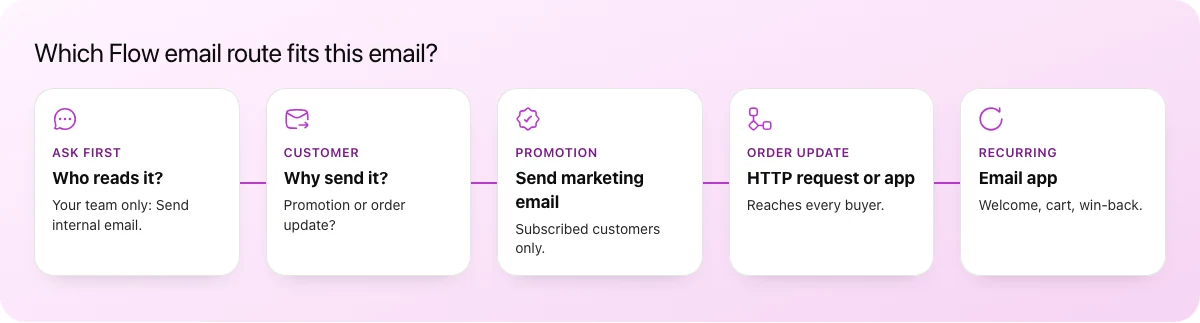
Send marketing email vs send internal email: the four routes compared
The two native actions are easy to confuse because both say "email". A simple way to remember them: internal email trusts the address you type, so the address is fixed; marketing email trusts the customer's consent record, so non-subscribers are skipped. Shopify's Send internal email reference says it plainly: because variables can't set the recipient, the action is best used to email staff, and customer emails belong in a marketing automation.
| Send internal email | Send marketing email | Send HTTP request | Flow email app | |
|---|---|---|---|---|
| Who receives it | Fixed addresses you type | The customer the workflow is about | Any address, from a variable | Any address, from a variable |
| Variable recipient | ✗ | Automatic | ✓ | ✓ |
| Marketing consent check | ✗ | ✓ | You apply the rules | Depends on the app |
| Shopify plan | Any Flow plan | Any Flow plan | Grow, Advanced, Plus | Depends on the app |
| Best for | Staff and supplier alerts | Promotions to opted-in customers | Order updates to every buyer | Order updates without code |
Which route for which email: 9 common cases
The deciding factor is the email's purpose, not the tool you already have open.
| Purpose | Route | |
|---|---|---|
| Order over $500, alert the team | Internal | Send internal email |
| A SKU sold, notify the supplier | Internal | Send internal email |
| Low-rated review approved, alert support | Internal | Send internal email |
| Preorder delayed, tell the buyer | Transactional | HTTP request or Flow email app |
| Cash on delivery, send payment instructions | Transactional | HTTP request or Flow email app |
| B2B order on net terms, send the invoice | Transactional | Send order invoice |
| Third order placed, welcome to VIP | Marketing | Send marketing email or your email app |
| Five-star review, thank-you with a discount | Marketing | Your email app's automation |
| 60 days without an order, win-back offer | Marketing | Your email app's automation |
If you are unsure where a message lands, read its subject line and first sentence. If they sell, it is marketing.
Route 1: send internal email with dynamic content for your team
The recipient is fixed, but the subject and message accept Liquid variables. That makes this action ideal for alerts that carry customer details to a person who acts on them. Here is a high-value order alert, step by step:
- In your Shopify admin, open the Flow app and click Create workflow.
- Select the trigger Order created.
- Add a condition on the order's total price, for example greater than or equal to 500.
- Add the action Send internal email. Type one or more addresses, separated by commas.
- Paste the subject and message below, then turn the workflow on.
Subject:
High-value order {{ order.name }}: {{ order.totalPriceSet.shopMoney.amount }} {{ order.totalPriceSet.shopMoney.currencyCode }}

Message:
New order {{ order.name }} from {{ order.customer.displayName }} ({{ order.customer.email }})
Ships to: {{ order.shippingAddress.city }}, {{ order.shippingAddress.countryCodeV2 }}

Items:
{% for li in order.lineItems %}- {{ li.quantity }} x {{ li.title }}
{% endfor %}
Customer note: {{ order.note }}
Open in admin: https://admin.shopify.com/store/YOUR-STORE/orders/{{ order.legacyResourceId }}
Flow uses camelCase field names from the GraphQL Admin API, so it is totalPriceSet, not total_price. Lists such as line items need a for loop: Flow does not support [0] indexes, and you can't print a list directly. If you would rather describe the workflow in plain English and let Shopify's assistant build it, our Shopify Flow AI prompt examples include alert workflows like this one.
Flow sends these emails from your store's sender email address. If your domain is not authenticated, some inboxes show "via shopifyemail.com". Fix that once in Shopify's sender email settings.
Route 2: send marketing email to the customer who triggered the workflow
The Send marketing email action has no recipient field to fill. It emails the customer the workflow is about, so the variable recipient is built in. The trade-off is consent: Shopify sends marketing automations only to customers subscribed to marketing by default. The one exception in Shopify's documentation is the abandoned checkout email, where you can switch the To field to all customers. For that flow specifically, see our abandoned cart email guide.
You can start from a template on the Automations page in your Shopify admin or build the workflow in Flow. A Flow workflow that includes a marketing activity action also appears on the Automations page, and you can edit it from either place.
The tag, segment, send pattern
When your trigger does not hand Flow a customer, or you want the audience to be explicit, split the job in three:
- Tag in Flow. React to the event and add a customer tag such as
review-5-star. If the trigger only passes an email address as text, which is common with app triggers, add the Get customer data action with a query likeemail:followed by the address variable, then loop over the result. - Segment the tag. Create a customer segment:
customer_tags CONTAINS 'review-5-star' AND email_subscription_status = 'SUBSCRIBED'. - Send on segment entry. Build a marketing automation on the Customer joined segment trigger. Shopify uses the same trigger for its win-back, birthday and VIP templates.
This gives you a dynamic recipient without code, with consent checked twice. Our Shopify customer retention guide has more segment queries built on the same syntax.
Route 3: send a transactional email to any address with an HTTP request
Some emails must reach every buyer, opted in or not: a delayed preorder, cash-on-delivery payment instructions, a license key. Apart from invoices on orders with payment terms (covered below), Flow has no built-in action for a free-form transactional email, so the clean route is Send HTTP request posting to a transactional email provider. You need the Grow, Advanced or Plus plan, an account with a provider, and your sending domain verified there.
The example below uses Resend's send endpoint. Any provider with a send API works the same way: change the URL, headers and field names to match its documentation.
- Store the API key as a secret. In Flow, go to Settings and add a secret, for example with the handle
resend_key. Shopify hides secret values in the editor and redacts them from run logs. Managing secrets needs the "Manage connections and secrets" staff permission. - Add a condition so the workflow only runs when the order has a customer email.
- Add Send HTTP request with the method POST and the URL
https://api.resend.com/emails. - Add the headers and body below.
- Set the error handling: Fail on client errors (4XX), so a broken payload shows up in your run history, and Retry on server errors (5XX or 429).
Headers:
Authorization: Bearer {{ secrets.resend_key }}
Content-Type: application/json
Idempotency-Key: preorder-delay-{{ order.legacyResourceId }}
Body:
{
  "from": "Your Store <orders@yourstore.com>",
  "to": [{{ order.customer.email | json }}],
  "subject": "An update on your order {{ order.name }}",
  "text": "Hello,\n\nYour order {{ order.name }} is taking longer than planned. It will ship within 10 days and we will email the tracking link as soon as it leaves.\n\nIf you would rather cancel, reply to this email and we will refund you in full.\n\nThe Your Store team"
}
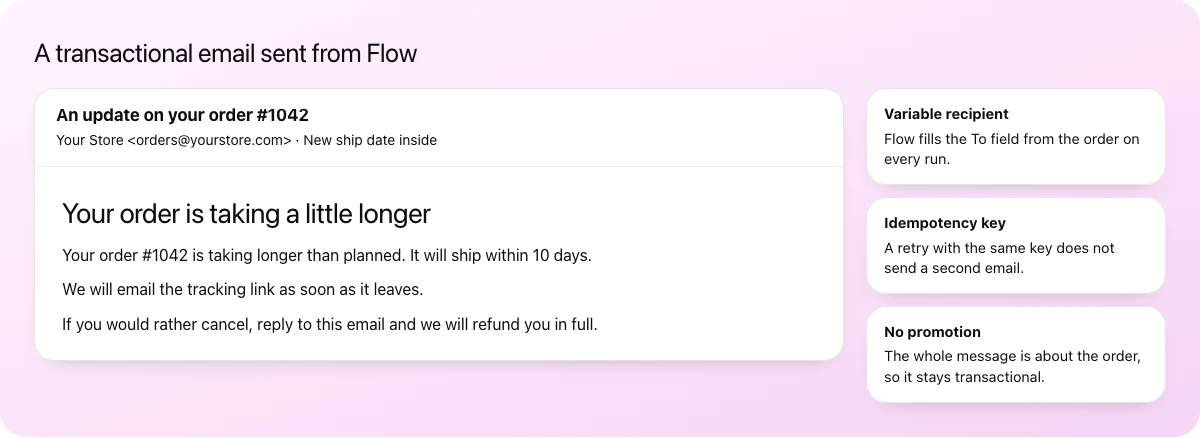
Two details make this production-ready. First, the json filter: it adds the quotes and escapes characters that would break the request, so do not wrap the variable in quotes yourself. Use it on any free-text value, such as a name or a note. Second, the Idempotency-Key header. Flow waits up to 30 seconds for a response, and with Retry on, it keeps retrying for up to 24 hours. A request that reached the provider but answered slowly can therefore be sent twice. Resend will not send a second email for the same key within 24 hours, which matches Flow's retry window. Both limits come from Shopify's Send HTTP request reference, linked in the cards below.
The native exception: Send order invoice for orders with payment terms
If you sell on net terms, check this action before you write any code. Send order invoice emails an invoice for the order that started the workflow, with four fields: recipient email address, sender (the store email or a staff account email), subject and an optional custom message. The recipient field is the one Send internal email lacks. Shopify's own B2B template fills it from email addresses stored in metafields on the company location, so the invoice can reach an accounts-payable inbox as well as the buyer.
The catch is in Shopify's Send order invoice reference: you must be using payment terms for the customer. On a regular paid order, the action is not the answer. Its sibling, Send payment reminder, is even narrower: it goes to the main contact of a B2B company, from the Payment schedule is due trigger.
Keep it transactional, or it becomes marketing
The address may be dynamic, but the law looks at the content. Under the FTC's CAN-SPAM compliance guide, an email is transactional when it only facilitates or confirms a purchase the customer already agreed to, delivers the goods, or gives warranty, recall or safety information. The FTC reads those categories narrowly. A message counts as commercial if its subject line would lead a reasonable reader to expect an ad, or if the transactional part does not appear mainly at the beginning. Rules differ outside the US, so check the ones that apply to your customers.
Slide to compare a delay notice that drifts into promotion with one that stays on the order:
Your order #1042 will ship within 10 days instead of 3.
We will email the tracking link as soon as it leaves.
Prefer to cancel? Reply and we will refund you in full.
View my orderOur winter collection just dropped. Take 20% off with code WINTER20.
Also, your order #1042 is delayed by about 10 days.
Shop the collectionRoute 4: let an email app own customer emails, and keep Flow for operations
Two kinds of apps fill the gap without code.
Flow email apps add a "send email" action to Flow, often sending through your own SMTP or Gmail account, with a recipient field that accepts variables. Before you install one, check four things:
- Which address customers see as the sender, and whether replies reach a real inbox.
- Whether the free tier is counted per month or as a lifetime total of actions.
- How long send logs are kept, so you can prove an email went out.
- Whether it adds an unsubscribe link when you use it for marketing.
Email marketing apps are the better home for recurring customer emails: welcome series, cart recovery, the post-purchase email, review requests and win-back. Consent, unsubscribe links, templates and measurement are built in, and you do not maintain an API call. Our Shopify email automation guide compares what Shopify's built-in tools cover with what a dedicated app adds.
What Trio does with Shopify Flow
Trio is our app, so here is exactly what it does and does not do. Trio adds one trigger to Flow, "new approved review". There are no Trio actions in Flow, so a workflow cannot ask Trio to send an email. Trio sends customer emails itself, from the automations in Trio's email marketing module, on Starter and up: welcome, post-purchase, abandoned checkout, win-back, birthday, VIP tier change, points expiry, thank-you after a review, and the review request. Marketing emails respect Shopify marketing consent and carry an unsubscribe link.

Where Flow still helps is routing review events to your team. Start from Trio's new approved review trigger, add a condition on the rating, then send an internal email to support with the product and the review text. The trigger passes its values as text, so test the rating with "equal to" 1 or 2 rather than "less than". It also hands Flow the reviewer's email as plain text, not a customer object, which is exactly the case where the tag, segment, send pattern above starts with Get customer data. Trio's own unhappy-customer rescue already alerts you privately about low ratings and prepares an apology email with a personal discount code for your approval, so the Flow version is for when the alert must reach another team or tool. More on that in our guide to automating review replies and on the Trio reviews page.
Paid plans start at $29 per month with a 14-day free trial; see Trio pricing for what each plan includes.
Fixing the email address variable error and other failed runs
Most failed Flow emails come down to one of seven causes. Find your symptom, then apply the fix.
| What you see | Cause | Fix |
|---|---|---|
Send internal email won't take {{ order.customer.email }} as the recipient | The field does not accept variables | Use a staff address, or switch to route 2, 3 or 4 |
| "Email not sent because [customer] is not subscribed to marketing" | Send marketing email checks consent | Order update: route 3 or 4. Promotion: only subscribers get it |
| "Shopify only sends emails to customers who are signed up for marketing emails" | The same consent check, shown in the editor | Same as above |
| Emails arrive "via shopifyemail.com" | Sender domain not authenticated | Authenticate your domain in Shopify's sender email settings |
| A variable prints empty | The value is not available at that step, or you used [0] or .size | Pick it from Add a variable, loop over lists, use the size filter |
| The HTTP request fails with a 4XX | Malformed JSON or a wrong API key | Use the json filter on free text and check the secret |
| The customer gets the same email twice | Flow retried after a timeout or a 5XX | Send an Idempotency-Key tied to the order |
The two quoted messages are the wording merchants report in the Shopify Community; Flow's run history shows the exact text for your store.
Test the workflow before you turn it on
Flow runs silently. A broken email workflow can fail for weeks before a customer complains, so test it the way it will fail.
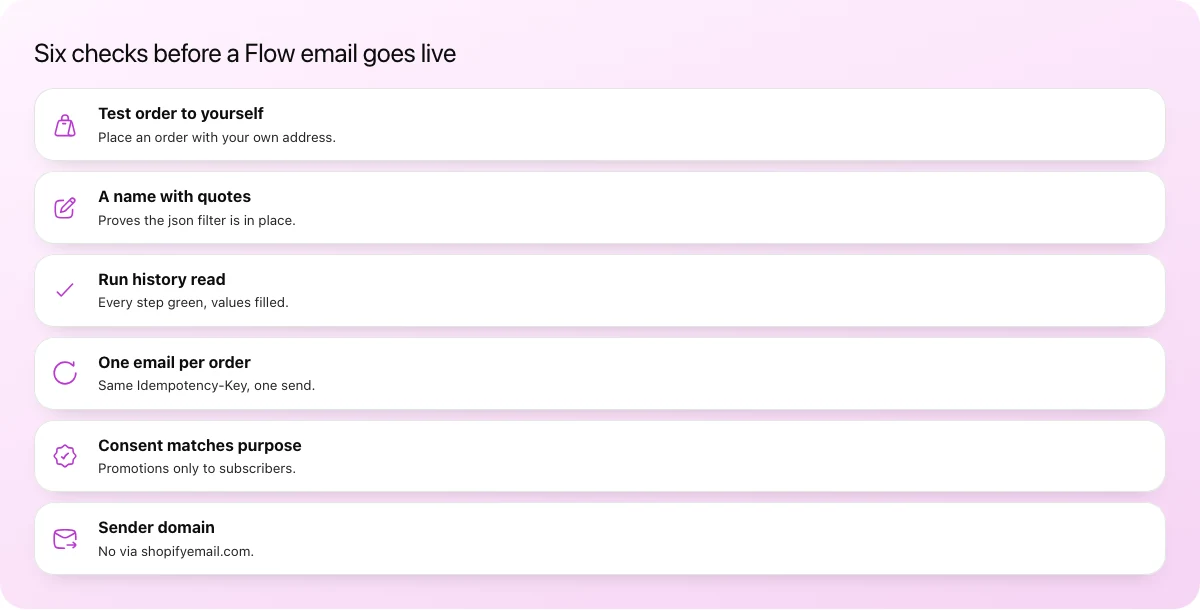
Then open the email on a phone and read it as the customer would. If you would not be glad to receive it, rewrite it before anyone else does.
Start with the smallest route that does the job: an internal alert for your team, Send marketing email for subscribers, an HTTP request for order updates, and an email app for everything that repeats. Flow is at its best when it moves information; leave the customer conversation to the tool built to send, measure and respect consent.
Frequently asked questions
- Can Shopify Flow send an email to a customer?
- Yes, but not with Send internal email, whose recipient field only takes fixed addresses. Use Send marketing email for subscribed customers, Send order invoice for orders with payment terms, a Send HTTP request to an email provider's API for other transactional messages, or an app that adds an email action with a variable recipient.
- Why can't I put the customer email variable in Send internal email?
- Shopify's documentation says variables can't be used in the recipient field of Send internal email. The action is meant for staff. You can still use variables in the subject and message, so the customer's address can appear in the body of an alert sent to your team.
- What is the difference between Send marketing email and Send internal email in Shopify Flow?
- Send internal email goes to fixed addresses you enter, usually your team, with no consent check. Send marketing email goes to the customer the workflow is about and only if that customer is subscribed to email marketing. One is for operations, the other for promotions.
- Why does Flow say the customer is not subscribed to marketing?
- The Send marketing email action checks the customer's marketing consent and skips anyone who has not subscribed. If the message is an order update, send it through a transactional route instead, such as an HTTP request to an email API or a Flow email app.
- Can I send transactional emails from Shopify Flow?
- Only in one narrow case. Send order invoice emails an invoice to the address you set, but only for orders that use payment terms. For anything else, such as a delay notice, the usual routes are a Send HTTP request to a transactional email provider (Grow, Advanced and Plus plans) or an app that adds a send email action to Flow.
- Which Shopify plan do I need to send emails from Flow?
- Shopify Flow is a free app on the Basic, Grow, Advanced and Plus plans, and Send internal email works in any workflow. The Send HTTP request action needs the Grow, Advanced or Plus plan.
- Can I send a Flow internal email to several people?
- Yes. Type the addresses in the Email address field separated by commas. They stay fixed for every run, so use a shared inbox if the right person changes often.
- Why do my Flow emails show via shopifyemail.com?
- Flow sends from your store's sender email address. If your domain is not authenticated, some inboxes show the message as sent via shopifyemail.com. Authenticate your domain in Shopify's sender email settings to fix it.
- Should I subscribe a customer to marketing for a moment so the Flow email goes through?
- No. It falsifies the consent record you may need to show later, and the customer starts receiving your campaigns. Send order updates through a transactional route and keep marketing for people who opted in.
- Can Trio send an email from a Shopify Flow workflow?
- No. Trio adds one trigger to Shopify Flow, new approved review, and no Flow actions. Trio sends customer emails from its own automations on Starter and up, and you can use its trigger to start your own workflow, such as a staff alert.
Related articles
Shopify email automation, step by step: native Messaging vs apps, 7 flow blueprints with timing and exit rules, silent failures and a QA plan. Start h…
November 25, 2026AI for storesShopify Flow AI Prompt Examples: 20 Prompts for Email Chains20 Shopify Flow AI prompt examples for email chains: welcome, checkout, review and win-back, with the wait and exit checks Sidekick skips. Copy them n…
November 25, 2026AI for storesHow to Automate Review Replies with AI: Workflow and RisksAutomate review replies safely: a routing matrix by star rating, guardrail rules to copy, the FTC limits and a 30-day rollout plan. Read the full work…
November 25, 2026