


Shopify Flow AI Prompt Examples: 20 Prompts for Email Chains

- Name the send action in every prompt. Flow's Send internal email is meant for staff, and Shopify Messaging's Send marketing email only reaches customers subscribed to email marketing.
- After every Wait, make Sidekick re-check the exit (new order, still subscribed), add a cooldown tag, and keep the whole chain under Flow's 90-day wait limit.
- Sidekick workflows start inactive. Test them with a tag gate and short waits before you turn them on, and move long marketing sequences to an email app.
Shopify Flow's AI assistant, Sidekick, turns one sentence into a draft workflow. Email chains are where those sentences fail: the second email reaches a customer who bought yesterday, or nothing goes out because the chosen action cannot reach customers. These Shopify Flow AI prompt examples for email chains close those gaps. Each of the 20 prompts names its trigger, its waits, the check that runs after every wait, the send action and, where repeats matter, a tag that blocks duplicates.
Still choosing which flows to build first? Start with our ecommerce marketing automation guide.
How Sidekick builds a Shopify Flow email chain from a prompt
According to the Shopify Help Center, you open Apps > Flow on a desktop, open Sidekick and describe the workflow in plain language. Sidekick creates it, summarizes it and links to it. You review and test it, edit it by hand or keep chatting, then click Turn on workflow. Generated workflows carry a "sidekick" tag, so they are easy to find.
Shopify adds a warning worth taking literally: Sidekick "might omit business-specific logic in complex workflows." An email chain is that kind of workflow. It is not one feature but a few building blocks repeated in a fixed order:
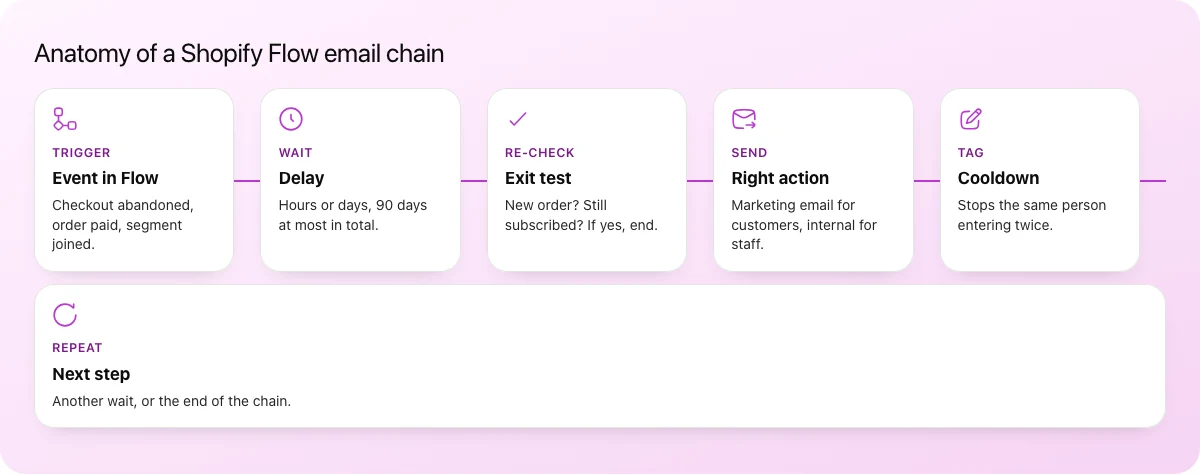
The trigger and the send steps are easy to name. The re-check and the tag are business logic, the kind Shopify warns may be left out, so ask for them in so many words.
Pick the send action before you write the prompt
"Send an email" maps to several Flow actions that reach different people. Name the one each step needs.
| Flow action | Comes from | Who receives it | Use it in a chain for |
|---|---|---|---|
| Send internal email | Flow, built in | The addresses typed in the action; the recipient cannot be a variable | Staff alerts and escalations |
| Send marketing email | Shopify Messaging app | Customers subscribed to email marketing | Welcome, checkout, post-purchase and win-back chains |
| Send payment reminder | Flow, built in | The main contact of a B2B company, on a payment schedule | B2B invoice follow-up (needs Shopify B2B) |
| Track an Event | Klaviyo app | Nobody directly: Klaviyo starts its own flow from the event | Stores that send their email from Klaviyo |
Sources: Shopify's reference pages for each action and its list of apps that work with Flow, checked November 25, 2026.
Two rules follow. Send internal email is for your team; Shopify itself points customer emails to marketing automations. Send marketing email skips anyone who has not opted in, which is right for consent and is also why a chain looks broken when you test it on an unsubscribed account. Our guide to sending emails from Shopify Flow covers each action's setup and common errors.
The prompt formula for Shopify Flow email sequences
A chain-ready prompt has seven parts. Leave one out and Sidekick fills the gap with a guess.
- Name: one workflow per chain, named after its job.
- Trigger: the exact name from Flow's trigger list, such as "Customer abandons checkout".
- Entry filter: who qualifies, who never enters (staff, wholesale, test accounts) and the consent check.
- Steps: each wait with its length, each email with its name and send action.
- Re-check after each wait: the exit, usually a new order or an unsubscribe.
- Cooldown tag: added and checked on entry, removed later if the chain may repeat.
- Test gate: a temporary condition so only your test customer can enter.
Here is the template behind the 20 examples:
Name the workflow "{chain name}".
Trigger: {exact Flow trigger}.
Only continue if {filter}, the customer is subscribed to email marketing,
and they do not have the tag "{chain}-sent". Then add that tag.
Step 1: send marketing email "{email 1}" with Shopify Messaging.
Wait {time}. After the wait, check that {exit condition} has not happened;
if it has, end the workflow.
Step 2: send marketing email "{email 2}". Repeat the check after every wait.
While I test, only continue if the customer has the tag "flow-test".
Drag the slider to compare a typical prompt with a chain-ready one:
Trigger: Customer abandons checkout. Only continue if the customer is subscribed and has no tag "checkout-chain". Add that tag.
Wait 1 hour. If the customer placed an order since the checkout was abandoned, end. Otherwise send marketing email "Reminder 1" with Shopify Messaging.
Wait 23 hours, check again, then send "Reminder 2".
Send customers who abandon checkout a couple of reminder emails.
20 Shopify Flow AI prompt examples for email chains
Each prompt follows the formula. Replace the values in curly brackets. "Send marketing email" means the Shopify Messaging action; if you send from another app, name its action instead. You still write each email in your email tool. Sidekick builds the steps around it.
- Welcome
#1 Name the workflow "Welcome chain". Trigger: Customer subscribed to email marketing. Skip customers tagged "staff" or "welcome-sent", then add "welcome-sent". Send marketing email "Welcome 1: your code". Wait 2 days; if the customer has placed an order or unsubscribed, end. Send "Welcome 2: bestsellers". Wait 3 days, check again, then send "Welcome 3: our story".
- Abandonment
#2 Name the workflow "Browse follow-up". Trigger: Customer left online store without making a purchase. Only continue if the customer is subscribed and has no tag "browse-sent" or "checkout-chain-active"; add "browse-sent". Wait 1 hour; if they placed an order since, end. Send marketing email "Still thinking it over?". Wait 14 days, then remove "browse-sent".
- Abandonment
#3 Name the workflow "Checkout recovery". Trigger: Customer abandons checkout. Only continue if the customer is subscribed. Wait 1 hour; if they placed an order since the checkout was abandoned, end. Send marketing email "Checkout reminder 1". Wait 23 hours, check again, then send "Checkout reminder 2: shipping and returns".
- Abandonment
#4 Name the workflow "Checkout cooldown". Trigger: Customer abandons checkout. If the customer has the tag "checkout-chain-active", end. Otherwise add it, wait 1 hour, check no order was placed since, and send marketing email "Checkout reminder". Wait 7 days, then remove the tag.
- Abandonment
#5 Name the workflow "High-value checkout". Trigger: Customer abandons checkout. Only continue if the checkout total is over {150} dollars and the customer is subscribed. Wait 2 hours; if no order was placed since, send internal email to {sales@yourstore.com} with the customer's name, email and cart items for a personal follow-up.
- Post-purchase
#6 Name the workflow "First-order onboarding". Trigger: Order created. Only continue if it is the customer's first order and they are subscribed. Wait 2 days, then send marketing email "Get the most from your order". Wait 12 days; if the order was refunded or canceled, end. Send "What customers pair it with".
- Post-purchase
#7 Name the workflow "Delivered: getting started". Trigger: Fulfillment event created. Only continue if the status is delivered, the order has no tag "onboarding-sent" and the customer is subscribed. Add that order tag. Wait 1 day, then send marketing email "Getting started with your {product type}".
- Post-purchase
#8 Name the workflow "Replenishment". Trigger: Order created. Only continue if the order contains a product tagged "refill-30" and the customer is subscribed. Wait 25 days; if the customer has ordered again since, end. Send marketing email "Running low?". Wait 7 days, check again, then send "Last reminder before you run out".
- Reviews
#9 Name the workflow "Review request after delivery". Trigger: Fulfillment event created. Only continue if the status is delivered and the customer is subscribed. Wait 5 days, then send marketing email "How is your order?". Wait 5 days; if the customer now has the tag "reviewed", end. Otherwise send "Last call: 30 seconds to review".
- Reviews
#10 Name the workflow "Tag reviewers". Trigger: the Trio new approved review trigger. Find the customer whose email matches the review's customer email and add the tag "reviewed". This tag is the exit for #9.
- Reviews
#11 Name the workflow "Low rating escalation". Trigger: the Trio new approved review trigger. Only continue if the rating is 1 or 2. Send internal email to {support@yourstore.com} with the product title, rating, comment and customer email. Wait 24 hours, look up the customer by that email again, and if they lack the tag "contacted", send internal email to {manager@yourstore.com}.
- Win-back
#12 Name the workflow "Win-back". Trigger: Customer joined segment "{Lapsed 90 days}". Only continue if the customer is subscribed and has no tag "winback-sent"; add it. Send marketing email "We saved your favorites". Wait 7 days; if they ordered since the trigger, end. Send "A thank-you for coming back". Wait 14 days, check again, and tag "lapsed" if there is still no order.
- Win-back
#13 Name the workflow "Lapsed VIP alert". Trigger: Customer joined segment "{Lapsed 90 days}". Only continue if total amount spent is over {500} dollars. Send internal email to {founder@yourstore.com} with the name, total spent and last order date for a personal note. Wait 10 days; if there is still no new order, send it again.
- Win-back
#14 Name the workflow "After a refund". Trigger: Refund created. Only continue if the order is fully refunded, the customer is subscribed and has no tag "refund-followup"; add it. Wait 2 days, then send marketing email "Sorry it was not right: how to choose", with tips and no discount. Wait 60 days and remove the tag.
- VIP
#15 Name the workflow "VIP welcome". Trigger: Order paid. Only continue if total amount spent is at least {1000} dollars, the customer has no tag "vip" and is subscribed. Add the tag "vip". Send marketing email "Welcome to VIP". Wait 7 days, then send "A note from the founder".
- VIP
#16 Name the workflow "Third order thank-you". Trigger: Order paid. Only continue if the customer now has exactly 3 orders and is subscribed. Wait 3 days; if the order was refunded or canceled, end. Send marketing email "You are one of our regulars" and add the tag "regular".
- Internal and B2B
#17 Name the workflow "Late fulfillment". Trigger: Order paid. Wait 48 hours. If the order is still unfulfilled, send internal email to {ops@yourstore.com} with the order number and items. Wait 24 hours; if it is still unfulfilled, email {manager@yourstore.com} the same way and add the order tag "late".
- Internal and B2B
#18 Name the workflow "High-risk order". Trigger: Order risk analyzed. Only continue if the risk level is high. Send internal email to {orders@yourstore.com} with the order link and risk details. Wait 12 hours; if the order is not canceled and has no tag "risk-checked", send it again with "Second notice" in the subject.
- Internal and B2B
#19 Name the workflow "Low stock". Trigger: Product variant inventory quantity changed. Only continue if the quantity is below {5} and the product has no tag "restock-alerted". Add that tag and send internal email to {buyer@yourstore.com}. Wait 3 days; if the quantity is still below {5}, email again, otherwise remove the tag.
- Internal and B2B
#20 Name the workflow "B2B payment follow-up". Trigger: Payment schedule is due. Use the Send payment reminder action. Wait 7 days; if the order is still unpaid, send internal email to {accounts@yourstore.com} with the company name, order number and amount due.
A few notes on adapting them:
- Delivery timing (#7, #9): Shopify says Fulfillment event created only fires on updates from third-party fulfillment services. If you ship yourself, use Order fulfilled plus a wait sized to your transit time.
- Segments (#12, #13): create the segment in Customers first, then name it in the prompt.
- Copy: the prompts wire the chain, the emails still need words. Borrow from our abandoned cart email guide, the stages of a post-purchase email and these review request email examples.
- Trio's trigger (#10, #11): search for "Trio" in Flow's trigger list. Trio sends the rating to Flow as text, so ask for "1 or 2", not "less than 3". If you use Trio's own review request, skip #9 to avoid two requests, and if you switched on Trio's unhappy-customer rescue, which already alerts you privately about low ratings, keep #11 for the escalation step only.
- Browse and checkout (#2, #4): the two chains check each other's tag, so a shopper who leaves a checkout does not also get the browse email the same day.
- B2B (#20): payment reminders need a plan with Shopify B2B, and Shopify warns against duplicating reminders set up in the admin.
A second prompt for the email copy
Flow builds the steps but does not write the emails. In Shopify Messaging, the built-in AI can draft a subject line and body for each email. Give it the chain context so the three emails read as a sequence, not three strangers:
Write email {2} of a {3}-email {checkout recovery} chain for {brand},
which sells {product type} to {audience}.
Email 1 (sent {1 hour} after) reminded them of the cart. This one goes out
{1 day} after and answers one objection: {shipping cost / returns / sizing}.
Tone: {plain, warm, no hype}. Under {90} words, one button: "{Return to checkout}".
Give 3 subject lines under 45 characters. No discount unless I ask.
Write one copy prompt per email and keep the email names identical to the ones in the workflow prompt, so the two halves match when you wire them up.
Six gaps to close in every Sidekick email chain
These come from Shopify's Wait action documentation and from how triggers fire. Check the generated workflow for each one, and if it is missing, paste the follow-up prompt into the same Sidekick chat rather than starting over.
- Re-check after every Wait. When a wait ends, Flow refreshes store data, so a condition placed after it sees an order placed during the wait. Without it, the chain keeps selling to someone who already bought. Follow-up: "After every Wait, add a condition that ends the workflow if the customer placed an order since the trigger."
- Fetch data again after a wait. Data from Get, Sum or Count steps placed before a Wait is not available after it. That is why prompt #11 repeats the customer lookup. Follow-up: "Repeat the Get customer data step after the Wait and use its result in the next condition."
- Stay under 90 days. The waits in one workflow add up to 90 days at most, or the workflow cannot be activated. Split long journeys, or use a scheduled workflow with a Get data step. Follow-up: "Total the waits; if they exceed 90 days, split the chain into two workflows linked by a tag."
- Turning a chain off cancels everyone in it. Deactivating or deleting a workflow stops the runs that are waiting. Editing an active workflow does not: waiting runs resume on the new version, so fix a live chain by editing it, not by switching it off and on.
- Triggers fire every time. A shopper who abandons three checkouts in a week enters three times. A cooldown tag with a timed removal (#4) caps the frequency. Follow-up: "At the start, end the workflow if the customer has the tag '{chain}-active'; otherwise add it, and remove it 7 days later."
- Chains collide. One customer can sit in your welcome chain, a checkout chain and an app's own sequence at once. Set a priority order using these collision rules for automated flows, and exclude customers tagged by a higher-priority chain.
How to test a Shopify Flow email chain before customers get it
Shopify asks you to test what Sidekick generates. A chain is slow to test at real speed, so compress it:
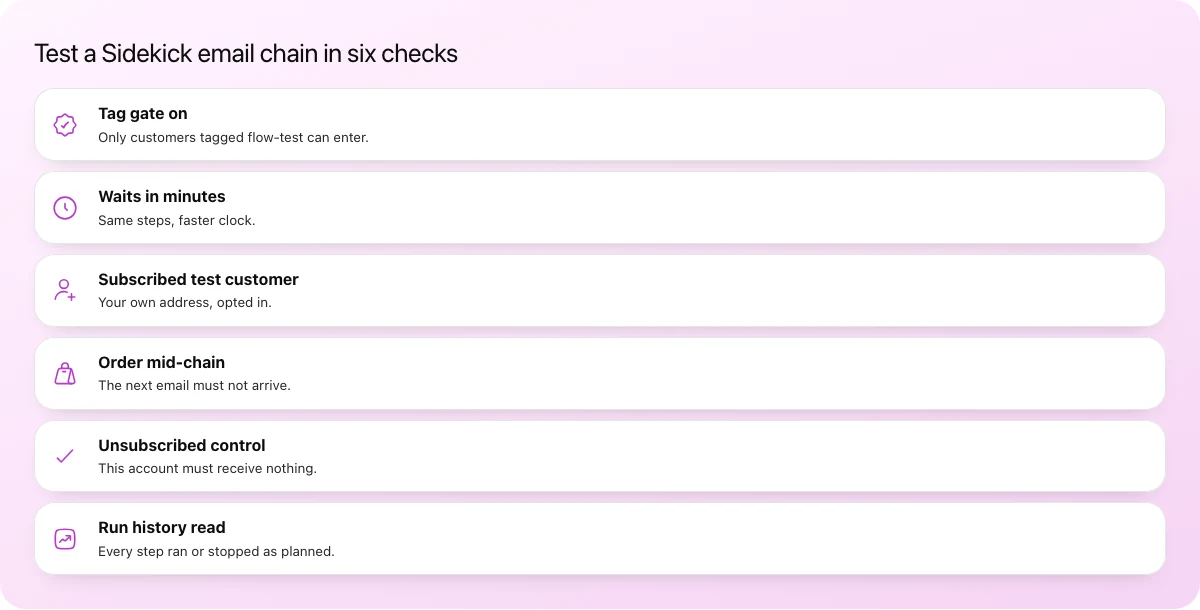
- Keep the test gate and tag one subscribed customer record that uses your own address.
- Shorten every wait to a few minutes.
- Trigger the chain, then place a test order halfway through. The next email must not arrive.
- Repeat with an unsubscribed record, which should receive nothing.
- Read the run history, restore the real waits, remove the gate and turn the workflow on.
When an email app beats Shopify Flow for email sequences
Flow is strong at short chains that also tag orders, alert staff or touch inventory. Long marketing sequences are another job: steps in Flow, content in your email tool, test results elsewhere. Trio is our product, so weigh the last column accordingly. Other figures come from each vendor's pricing page or App Store listing, checked November 25, 2026.
| For email chains | Shopify Flow + Messaging | Klaviyo | Trio (ours) |
|---|---|---|---|
| Draft a chain from one sentence | yes, Sidekick (desktop) | yes, Composer | yes, Mailo agent, you approve |
| Steps and email content in one place | no, steps in Flow, emails in Messaging | ✓ | ✓ |
| Built-in review request chain | no, needs a review app | yes, separate reviews app, 50 orders a month below Marketing plan | yes, paid plans |
| Loyalty program in the same tool | ✗ | ✗ | ✓ |
| SMS | yes, from $0.012 per US message | yes, paid add-on | ✗ |
| Free tier | 10,000 emails a month | 250 profiles, 500 emails | 250 contacts, 500 emails, no automations |
| First paid step | $1 per 1,000 emails after 10,000 | $20/month for 500 profiles | $29/month for 1,000 contacts |
Stay in Flow if your chains are short and your volume fits Shopify's free allowance. Choose Klaviyo for SMS, sign-up forms and predictive analytics, if you have time to maintain it (what Klaviyo is covers the trade-offs). Our Shopify email automation guide compares the built-in options.
Trio takes a third route. Its email marketing automations cover welcome, post-purchase, abandoned checkout (up to three reminders), win-back after 30, 60 or 90 days, birthday, VIP tier change, points expiry and the thank-you after a review, with multi-step sequences, from Starter. You set the timing inside each scenario instead of wiring waits. The review request is built into Trio reviews: on paid plans it goes out 7 days after the order by default, with up to two reminders. Trio does not track deliveries, so for delivery-based timing, prompt #9 in Flow is the better tool.

The prompt habit carries over: with Trio's AI agents, Mailo drafts an automation and its emails from one sentence, and nothing is sent until you approve. Trio is email-only today, and automations start on Starter at $29 a month with a 14-day trial (see the plans).
Start with one chain, not twenty. Pick the prompt closest to revenue, usually #3 or #1, test it behind the gate, and add the next only when the first has run clean for two weeks.
Frequently asked questions
- Can Shopify Flow send emails to customers?
- Yes, through an app action. Shopify Messaging adds a Send marketing email action that reaches customers subscribed to email marketing. Flow's built-in Send internal email is meant for staff, because its recipient field cannot be a variable.
- How do I create a Shopify Flow workflow with Sidekick?
- On a desktop, open Apps > Flow, open Sidekick and describe the workflow in plain language. Sidekick builds it and links to it. Review it, test it and turn it on yourself, because generated workflows start inactive.
- What is the longest wait allowed in a Shopify Flow workflow?
- Up to 90 days per workflow, according to Shopify's documentation for the Wait action. A workflow with longer waits cannot be activated. For longer gaps, Shopify suggests a scheduled workflow that uses a Get data step.
- Why did my Shopify Flow marketing email not send?
- Consent is the usual cause. Send marketing email only reaches customers subscribed to email marketing, so a test customer who never opted in gets nothing. Also check that the workflow is turned on, then open its run history to see which step stopped.
- How do I stop a Flow email chain when the customer buys?
- Put a condition after every Wait that looks for a new order and ends the workflow if it finds one. Flow refreshes store data when a wait ends, so the check sees orders placed during the wait.
- Is Shopify Flow free?
- Shopify describes Flow as a free app on the Basic, Grow, Advanced and Plus plans. The emails cost what your email tool charges. Shopify Messaging includes 10,000 free emails a month, then $1 per 1,000.
- Can Sidekick write the email copy as well as the workflow?
- In Flow, Sidekick builds the trigger, conditions, waits and actions. The email content lives in your email tool. Shopify Messaging has its own AI writing help, and dedicated email apps have theirs.
- Should I build email sequences in Shopify Flow or in an email app?
- Use Flow for short chains, staff alerts and anything that also tags customers or orders. Use an email app for long marketing sequences with branches, A/B tests and revenue reporting, where the steps and the content live in one place.
- Can Shopify Flow send a browse abandonment email?
- Yes. Start the workflow with the Customer left online store without making a purchase trigger, check that the customer is subscribed, add a short wait, then use Send marketing email. Add a tag so the same shopper is not emailed after every visit.
- Does Trio work with Shopify Flow?
- Yes, through one trigger, a new approved review. You can start your own Flow workflow from it, for example to alert support about low ratings. Trio has no Flow actions, and its own email automations run inside Trio.
Related articles
Shopify email automation, step by step: native Messaging vs apps, 7 flow blueprints with timing and exit rules, silent failures and a QA plan. Start h…
November 25, 2026AI for storesShopify Flow send email: how to email customers with a variable recipientSend internal email won't take a variable recipient. Learn 4 ways to email customers from Shopify Flow, with copyable Liquid, error fixes and a decisi…
November 25, 2026AI for storesHow to Automate Review Replies with AI: Workflow and RisksAutomate review replies safely: a routing matrix by star rating, guardrail rules to copy, the FTC limits and a 30-day rollout plan. Read the full work…
November 25, 2026