


Shopify Email Automation: The Complete Setup Guide (2026)

- Shopify's own Messaging app covers the core automated emails (welcome, abandoned checkout, abandoned cart, post-purchase) with 10,000 free emails a month. Apps take over when you need review requests, loyalty data, SMS or deeper segments.
- Write a one-page spec for every flow (trigger, wait, exit, suppression, metric), then build in this order. Welcome and abandoned checkout first, post-purchase and review request next, win-back and birthday last.
- Most broken automations fail silently. A missing checkout email, the consent filter, a welcome that only listens to forms or an empty birthday field stop sends without any error, so test every path with a test customer.
Shopify email automation means your store sends the right email when a shopper does something, such as subscribing, leaving checkout or placing an order, without anyone pressing send. On Shopify you can build it three ways: with Shopify's own Messaging app, with Shopify Flow for custom logic, or with an email app from the App Store. This guide shows where each one fits, gives you seven flow blueprints to copy, walks through the native setup click by click, and lists the silent failures that stop automated emails without a single error message.
It is the Shopify-specific companion to our ecommerce marketing automation playbook, which covers strategy across channels. Here we stay inside the Shopify admin.
The first two figures come from a vendor measuring its own customers, so treat them as direction, not a forecast. The direction is consistent across the industry, though: an email triggered by what a shopper just did earns far more per send than a newsletter sent to everyone at once.
Where Shopify email automation runs: Messaging, Flow or an app
Three tools share the word "automation" in Shopify, and they do different jobs:
- Shopify Messaging (formerly Shopify Email) is Shopify's own email, SMS and WhatsApp app. Its automations live under Apps > Messaging > Automations; older guides still say Marketing > Automations, from before Shopify renamed that tab Growth in June 2026. The Help Center lists templates in four groups: recovery (abandoned checkout, abandoned cart, abandoned product browse), welcome (a discount email or a series), post-purchase (thank-you, upsell after a first purchase, win-back, retail visit) and customer appreciation (birthday, welcome VIP customers).
- Shopify Flow is Shopify's workflow app: trigger, condition, action. It is the place for custom logic, or for any automation that involves another app. It is built for store operations, and the line between an internal alert and a marketing email confuses many merchants, so we wrote a separate guide on sending emails from Shopify Flow.
- Email apps such as Klaviyo, Omnisend, Mailchimp or Trio bring their own flow builder, templates and reporting, and read your Shopify customers and orders.
Shopify has also added Autopilot, under Growth > Autopilot, in early access for stores that qualify. It recommends marketing actions from your products, customers and sales, including email flows in Messaging such as cart and browse recovery, and you approve or reject each one before it goes live. Treat its suggestions like a template: check the trigger, exit and audience before you approve.
Whatever the tool, every automated email has the same anatomy:
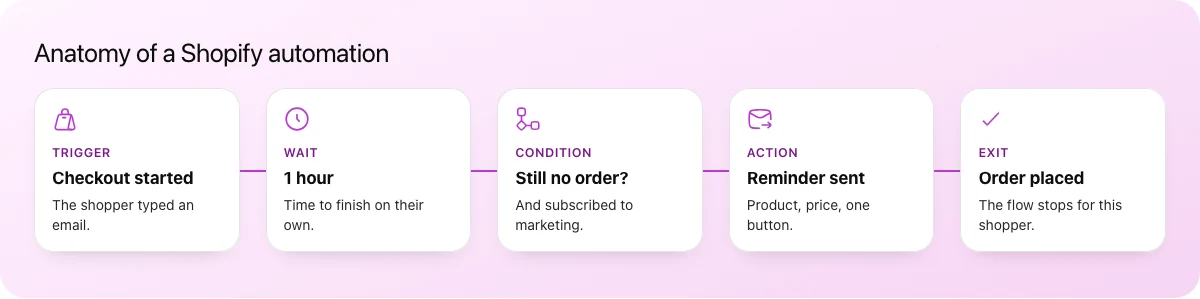
The 7 Shopify automated emails to set up, with timing and exit rules
Build in order of distance to a purchase. A shopper who left checkout ten minutes ago is close to buying; a customer who has not ordered in four months is not. The timings below are starting points to test, not benchmarks.
| Flow | What starts it | First send to test | Exit | Watch out for |
|---|---|---|---|---|
| Welcome series | New email subscriber | Right away, then 2 more over 7 days | First order | Shopify's welcome templates listen to storefront form signups |
| Abandoned checkout | Checkout started with an email, no order | About 1 hour, then 24 h, then 72 h | Order placed | No email typed at checkout means no reminder |
| Abandoned cart | A known shopper adds to cart, never starts checkout | A few hours | Checkout started | Anonymous carts have no address to email |
| Post-purchase | Order created | 1 to 3 days after the order | Refund or cancellation | A cross-sell before the parcel arrives reads as pushy |
| Review request | Order created, plus delivery and use time | 7 to 14 days after the order | Review submitted | Many timers count from the order date, so add shipping time |
| Win-back | No order for a set number of days | About 1.5 times your usual repeat gap | Any order | A round 60 days copied from a template ignores your data |
| Birthday | Birth date on file | On the day or a few days before | Reward used | No birth dates collected means the flow sends nothing |
Welcome series: deliver the promise first
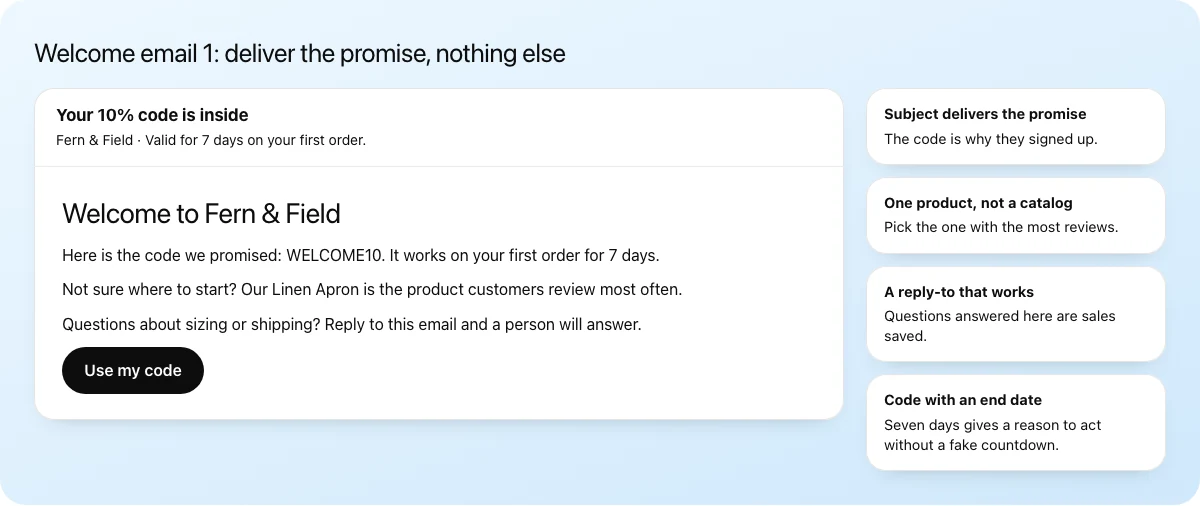
Email 1 delivers whatever the signup form promised, a code or a guide, and nothing else. Email 2 brings proof: your best-reviewed product and one short customer quote. Email 3 explains how to choose, or why the brand exists. The series ends the moment the subscriber orders. If your list is still small, start with growing your Shopify newsletter list before you polish this flow.
Abandoned checkout and abandoned cart: two different flows
They sound alike but catch different people. Abandoned checkout reaches shoppers who typed an email at checkout and left. Abandoned cart reaches known shoppers who added a product but never started checkout. Shopify Messaging has a template for each, and abandoned checkout emails sit outside its monthly email allowance. Keep the first reminder free of discounts and answer the usual objections, shipping cost and returns, in the second. Our abandoned cart email guide has the full three-email sequence with examples.
Post-purchase and review request: the order-driven pair
Both start from the order. The post-purchase email thanks the customer and explains how to get the best out of the product; sell later. The review request waits until the product has arrived and been used. See the post-purchase email flow for the stages and this review request email example for wording that gets replies. We found no review request template in Shopify Messaging: that flow comes from your reviews app.
Win-back and birthday: the retention pair
Set the win-back trigger from your own data: look at the usual gap between a customer's first and second order and multiply it by about 1.5. A coffee brand and a furniture store should not share the same number. Shopify's birthday automation reads the birth date standard metafield, so collect birthdays first, for example with a custom field in Shopify Forms.
The one-page spec to write before any flow
Most automation bugs are decisions nobody wrote down. Copy this spec into a shared doc and fill one per flow:
FLOW        Abandoned checkout
TRIGGER     Checkout started with an email, no order after 1 hour
AUDIENCE    Subscribed to email marketing (or all customers: decide and note why)
STEPS       1 h reminder, no discount / 24 h shipping, returns and a review quote / 72 h last call
EXIT        Order placed, or unsubscribe
SUPPRESS    Staff and test accounts, customers holding an unused discount code
METRIC      Recovered orders / checkouts that entered the flow, first check after 30 days
OWNER       Name, review date
How to set up automated emails in Shopify Messaging, step by step
Here is the native path, based on the Shopify Help Center guide to marketing automations:
- From your Shopify admin, go to Apps > Messaging, then click Automations.
- Click Create automation.
- Pick a template. For site visitors: Recover abandoned checkout, Recover abandoned cart or Convert abandoned product browse. For customers: a welcome, post-purchase or customer appreciation template, such as Win back customers or Celebrate customer birthday.
- Recovery templates only: choose the channel, Email, SMS or WhatsApp. SMS and WhatsApp are billed per message, including abandoned checkout messages. Welcome, post-purchase and appreciation templates are email only and are created on desktop.
- Click Edit email, replace the template copy with your own, then click Send test and send it to yourself.
- To change waits or conditions, open the automation, click Edit workflow, make your changes and click Apply changes.
- Click Turn on, then Turn on again in the dialog. You can also choose Save without turning on and come back once the copy is approved.
Three details from the Help Center matter more than they look. Editing workflows and templates works on desktop only. Turning an automation off cancels every workflow in a wait stage, so those customers never get the next message. And marketing automations send only to customers subscribed to marketing by default; the Recover abandoned checkout email is the one automation where you can switch the To: field to all customers.
On cost, Shopify Messaging includes 10,000 free emails a month on eligible plans, then $1 per 1,000 emails up to 300,000. Automations count toward the free 10,000, abandoned checkout emails do not, and unused emails do not roll over. Shopify's pricing page also notes that Shopify Network Intelligence must be enabled for this pricing, so check that setting if your bill looks wrong.
Native Shopify automated emails vs an email app: a decision table
Native tools are enough for many stores. The question is what your flows need to know. Trio is our product, so weigh this table with that in mind. Competitor figures come from each vendor's Shopify App Store listing or pricing page, checked on November 25, 2026.
| What you need | Shopify Messaging | Klaviyo | Omnisend | Mailchimp | Trio (ours) |
|---|---|---|---|---|---|
| Free tier | 10,000 emails a month | 250 profiles, 500 emails a month | 250 contacts, 500 emails a month | 250 contacts, 500 sends a month | 250 contacts, 500 emails a month, no flows |
| First paid step | $1 per 1,000 emails after the free 10,000 | $20/month for 500 profiles | $16/month for 500 contacts | From $13/month, flows up to 4 steps | $29/month for 1,000 contacts |
| SMS | yes, $0.012 per US message | yes, paid add-on | yes, on Pro | add-on | ✗ |
| Sign-up forms or pop-ups | Shopify Forms | ✓ | yes, including spin-to-win | signup forms and landing pages | no, inline email-capture section only |
| Product reviews built in | ✗ | yes, capped at 50 orders a month below the Marketing plan | ✗ | ✗ | ✓ |
| Loyalty program built in | ✗ | ✗ | ✗ | ✗ | ✓ |
| Billed on the Shopify invoice | ✓ | external charges possible | external charges possible | external charges possible | ✓ |
Read it as trade-offs, not a ranking:
- Stay native if you send fewer than about 10,000 emails a month, the flows you need are in the template list, and you do not need review quotes or points balances inside your emails.
- Choose a dedicated email platform if you need SMS, web push, pop-ups, predictive analytics or very granular segments, and someone on the team will maintain the integrations with your reviews and loyalty apps. Our Klaviyo pricing breakdown shows how costs grow with your list.
- Choose an all-in-one app if you want reviews, email and loyalty to share one customer record without integrations, and email-only fits your channel mix. Trio has no SMS today, and its free plan covers campaigns but not automations.
For a wider field with strengths and weak spots per tool, see our roundup of the best email marketing apps for Shopify stores.
Seven silent failures in Shopify automated email marketing
A broken automation rarely throws an error. It just sends nothing, or sends to the wrong people. These are the failures we see most, and the fix for each:
- No email at checkout. An abandoned checkout only exists for a shopper who typed an email address. Put the email field first and keep the checkout short.
- The consent filter. By default, Shopify marketing automations skip customers who are not subscribed to marketing. If a flow looks empty, check how many of your customers have actually opted in.
- Welcome that only listens to forms. Shopify's welcome automations target customers who subscribe through a form on your online store. Subscribers who opt in at checkout or arrive by CSV import may never enter it, so check where your subscribers come from.
- Toggling off during an edit. Turning an automation off cancels everyone waiting in it. Edit the workflow in place instead of switching it off and on.
- An empty data field. A birthday flow with no birth dates on file is switched on and silent. The same goes for any flow that depends on a metafield you never fill.
- Default segment rules. Shopify's default VIP segment needs a third order and at least $1,000 in spend, or a VIP tag. With a $35 average order, almost nobody qualifies. Adjust the rule to your store before you turn on the Welcome VIP customers template or build any VIP flow on it.
- Flows that collide. One customer can qualify for the welcome, the abandoned checkout and the post-purchase flow in the same week. Give every sales flow an exit on purchase and allow one discount in flight per customer.
Consent and deliverability rules for automated emails
Automated does not mean exempt. The FTC's CAN-SPAM compliance guide applies to commercial email in the US: no misleading headers or subject lines, a valid postal address, and an opt-out that works and is honored within 10 business days. Abandoned checkout, win-back and birthday emails are marketing, not transactional messages. That is why Shopify sends them only to subscribers unless you change the abandoned checkout setting, and why that change deserves a written decision. EU and UK consent rules are stricter. This is a summary, not legal advice.
Mailbox providers set the other half of the rules. Google's email sender guidelines ask every sender to authenticate with SPF or DKIM and keep the spam rate below 0.3%. Bulk senders, above 5,000 messages a day to Gmail, also need DMARC and one-click unsubscribe. Automations help here: an expected, relevant message draws fewer complaints than a blast.
Test before you switch on: a 20-minute QA plan
A Send test only proves the email renders. It does not prove the flow fires, waits, exits or reaches the right people. Run the whole path:
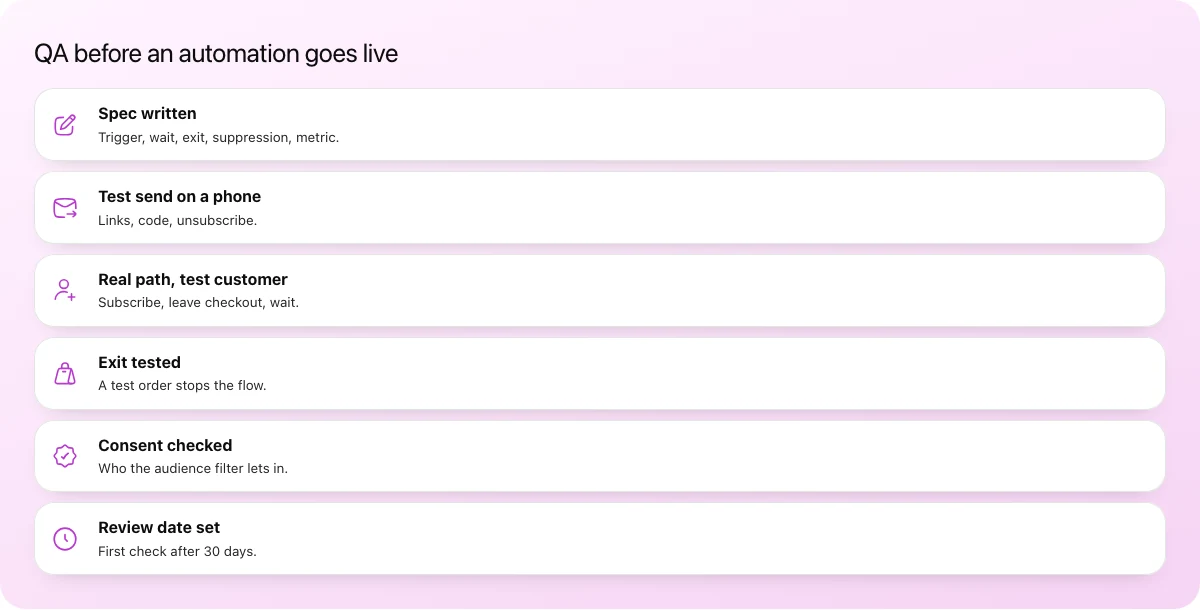
- Create a test customer with a plus address, such as you+welcome@yourdomain.com, and subscribe through the same form your shoppers use.
- Start a checkout with that address, leave, and confirm the reminder arrives after the wait you set.
- Complete a test order (Shopify Payments test mode or the Bogus Gateway) and confirm the next reminder never comes.
- Click every link and discount code on a phone, then click unsubscribe and check that the customer's consent changes in Shopify.
- Put a review date in your calendar. A flow nobody opens for a year still carries last year's prices and policies.
Setting up Shopify email automation with Trio
Trio is the app we build. It brings reviews, email marketing and a loyalty program together, so automated emails can use data a standalone email tool does not hold. Automations start on the Starter plan, at $29 a month with a 14-day free trial (see all plans). They cover welcome, post-purchase, abandoned checkout, win-back, birthday, points expiry, a thank-you after a review, and the review request. The VIP tier change email needs VIP tiers, which start on Growth ($79 a month).

A few specifics, so you know what you get:
- Abandoned checkout uses Shopify's abandoned checkouts, with up to 3 reminders on a schedule you set, an optional coupon, a check every 30 minutes and quiet hours at night.
- Win-back fires after 30, 60 or 90 days of inactivity. There is no free-form delay, so pick the option closest to 1.5 times your usual repeat gap.
- The review request goes out 7 days after the order by default, with up to two reminders. The delay counts from the order date, so add your shipping time.
- Every email can show the customer's points balance and quotes from real reviews, and loyalty events such as points about to expire trigger their own emails. See how that works in loyalty and rewards.
Here is why shared data matters, on the most overlooked flow of all, the thank-you after a review:
Thanks, Maya. Your photo of the Linen Apron will help the next shopper choose.
We added 50 points: your balance is 340, enough for free shipping.
Your next review earns points too.
Use my pointsWe appreciate your feedback.
Here is 10% off your next order.
Shop nowMailo, one of Trio's AI agents, can draft an automation and its emails from one sentence. Nothing goes out until you approve it. To judge results, Trio credits an order to an email when the customer clicked it in the 5 days before buying; opens do not count. Other tools use other windows, so compare flows inside one tool, not across tools.
Start with two flows this week, welcome and abandoned checkout, written from a spec and tested with a test customer. Add the order-driven pair next month. Shopify email automation pays off through a few flows that run cleanly, not through the longest list of switches.
Frequently asked questions
- Does Shopify have built-in email automation?
- Yes. Shopify Messaging, the app formerly called Shopify Email, includes automations under Apps > Messaging > Automations. Templates cover abandoned checkout, abandoned cart, abandoned product browse, welcome, post-purchase, win-back and birthday emails, and you can add custom logic with Shopify Flow.
- Is Shopify email automation free?
- Partly. Shopify Messaging includes 10,000 free emails a month on eligible plans, then charges $1 per 1,000 emails up to 300,000. Abandoned checkout emails do not count toward the free allowance, other automations do, and unused emails do not roll over to the next month.
- How do I set up automated emails on Shopify?
- Go to Apps > Messaging > Automations, click Create automation, pick a template, edit and test the email, then turn it on. Change waits and conditions with Edit workflow. Write down the trigger, exit and audience before you start, so you know what the template should do.
- Which automated emails should a Shopify store set up first?
- Start with a welcome series and abandoned checkout reminders, because both triggers sit right next to a purchase. Add the post-purchase email and the review request next, then win-back and birthday emails once the first four run cleanly.
- How long should I wait before sending an abandoned checkout email?
- A wait of about one hour is a sensible first test, followed by reminders around 24 and 72 hours later. Check the wait step in whatever template you use, because defaults vary between tools, and stop the flow the moment the customer orders.
- Can Shopify Flow send marketing emails to customers?
- Flow is built for store workflows such as tagging customers or alerting your team. Customer-facing marketing emails belong in Shopify Messaging or an email app, which handle consent, unsubscribe links and reporting. Flow is useful to start or customize those automations.
- Why are my Shopify automated emails not sending?
- The usual causes are a customer who is not subscribed to marketing, a checkout abandoned before any email was typed, an automation that was turned off (which cancels everyone waiting in it), a welcome flow that only listens to storefront forms, or a birthday flow with no birth dates on file.
- Do automated emails need customer consent?
- Shopify's marketing automations send only to customers subscribed to marketing by default. In the US, CAN-SPAM requires honest headers, a postal address and a working opt-out honored within 10 business days. EU and UK rules are stricter, so check them if you sell there.
- Shopify Messaging or Klaviyo for email automation?
- Shopify Messaging is cheaper for small lists and billed on your Shopify invoice. Klaviyo adds predictive analytics, AI segments and more channels such as WhatsApp and mobile push, with prices that rise with active profiles. Choose by the flows and data you need, not by the size of the feature list.
- Can I show reviews and loyalty points in Shopify automated emails?
- Not natively in Shopify Messaging. You need an app that holds that data. In Trio, every email can show the customer's points balance and quotes from your reviews, and automations start on the Starter plan.
Related articles
20 Shopify Flow AI prompt examples for email chains: welcome, checkout, review and win-back, with the wait and exit checks Sidekick skips. Copy them n…
November 25, 2026AI for storesShopify Flow send email: how to email customers with a variable recipientSend internal email won't take a variable recipient. Learn 4 ways to email customers from Shopify Flow, with copyable Liquid, error fixes and a decisi…
November 25, 2026AI for storesHow to Automate Review Replies with AI: Workflow and RisksAutomate review replies safely: a routing matrix by star rating, guardrail rules to copy, the FTC limits and a 30-day rollout plan. Read the full work…
November 25, 2026