


Mailchimp Shopify integration: how to set it up, test it and fix sync problems

- Install the official Mailchimp app from the Shopify App Store, link one store to one audience, then turn on the Mailchimp app embed in your theme, or cart and checkout events never reach Mailchimp.
- Before the first sync, pause old welcome automations and untick the preselected sign-up box at checkout. After it, run a 15-minute test with two test addresses and one test order.
- Mailchimp's Free plan has no automation flows, so abandoned cart, welcome and post-purchase emails need a paid plan, billed by Mailchimp outside your Shopify invoice.
The Mailchimp Shopify integration is a free app that sends your Shopify customers, orders, products and storefront events into a Mailchimp audience. Once it runs, you can send abandoned cart, welcome and post-purchase emails from Mailchimp using real store data. The setup screens take a few minutes. The problems show up later: duplicate welcome emails, an abandoned cart flow that never fires, contacts marked subscribed when you did not expect it.
This guide covers the official setup, what syncs in each direction, a 15-minute test plan and a fix table for the usual sync problems. For where these flows sit in a complete email program, start with our ecommerce email marketing guide. Menu names below come from Mailchimp's help center, checked on November 25, 2026. Mailchimp moves buttons from time to time, so trust the labels on your screen if they differ.
What the Mailchimp Shopify integration does (and what it doesn't)
Mailchimp and Shopify connect through one official app, listed as "Mailchimp Email SMS Marketing" by Intuit Mailchimp. Connecting it does five things:
- It copies your Shopify customers into one Mailchimp audience, with their subscription status.
- It sends orders and products, so Mailchimp can report revenue and recommend products.
- It sends nine storefront events, such as product viewed and checkout started, that can trigger automations.
- It syncs discount codes you create in Mailchimp's Discounts tab to Shopify.
- It shows attributed campaign revenue in your Shopify dashboard.
It also has limits worth knowing before you start:
- One audience per store. Mailchimp recommends a separate audience for each additional store.
- The Free plan has no automation flows, so no abandoned cart or welcome sequence.
- Shopify's own order confirmation cannot be turned off, so Mailchimp advises against switching on its order confirmation email: customers would get two.
- It is not a reviews or loyalty tool, although the App Store listing says it works with Judge.me, Smile.io and Yotpo.
- The legacy app is being retired. Tutorials that describe Mailchimp for Shopify [Legacy] no longer match what you will see.
Official app or a Zapier-style connector?
Half the search results for this topic are connector pages from Zapier, Make or similar tools. They solve a different problem. Use this table to pick:
| Your situation | Use | Why |
|---|---|---|
| You want abandoned cart, welcome and post-purchase flows from Mailchimp | Official app | Only the app sends storefront events and the product catalog |
| You want Mailchimp discount codes to work at checkout | Official app | Discount sync is part of the app |
| You need one custom rule, such as tagging buyers of a specific product | Official app first, its Rule Builder tab | Try the app's tagging rules before adding a tool |
| You must push data the app does not handle, into or out of a third tool | Connector, on top of the app | A connector moves records on triggers you set, nothing more |
| You only want a newsletter list and never plan to use flows | Either works | The app is still free and keeps consent statuses aligned |
A connector does not install the app embed, so it cannot replace the official app for behavior-based flows. It also comes with its own subscription and its own failure point.
Before you connect Mailchimp to Shopify: six checks
Most broken setups trace back to something that was already in place before the first sync. Run these checks first.
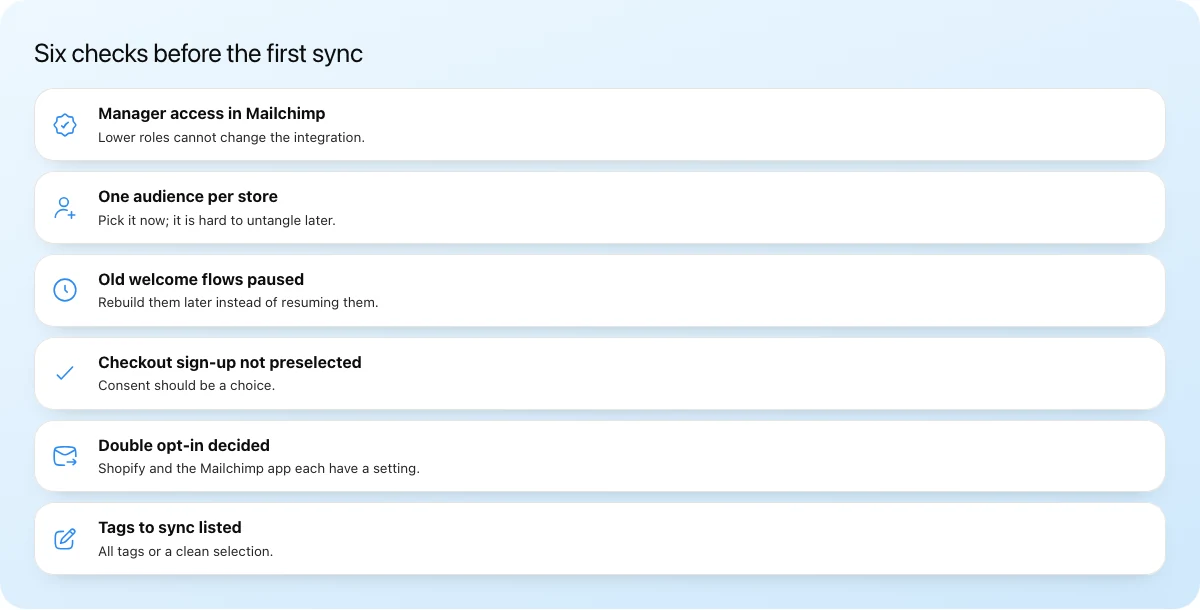
- Check your Mailchimp role. Mailchimp requires manager access or higher to make changes to the integration.
- Choose the audience. The integration links one store to one audience, and your default audience is preselected. If you run several brands, decide now which audience belongs to which store.
- Pause old automations. Mailchimp asks you to pause existing welcome automations and classic automations tied to the audience before connecting. Otherwise new customers can receive an old welcome email and a new one.
- Fix the checkout box. If your checkout collects sign-ups, Mailchimp recommends you untick the preselected sign-up box in Shopify. You will find it under Settings, Checkout, in the marketing options. Shopify explains the options in its help article on collecting customer contact information.
- Decide on double opt-in. Shopify has its own marketing double opt-in setting in its notification settings, and the Mailchimp app has another one in its Settings tab. Choose one place to manage it and write it down, or new subscribers can get two confirmation emails.
- List the tags you want. Tags like "wholesale" or "vip" are useful for segments. Tags left over from old apps only add clutter, so decide between syncing all tags or a selection.
How to connect Mailchimp to Shopify, step by step
Here is the current flow, based on Mailchimp's guide to connecting Mailchimp for Shopify.
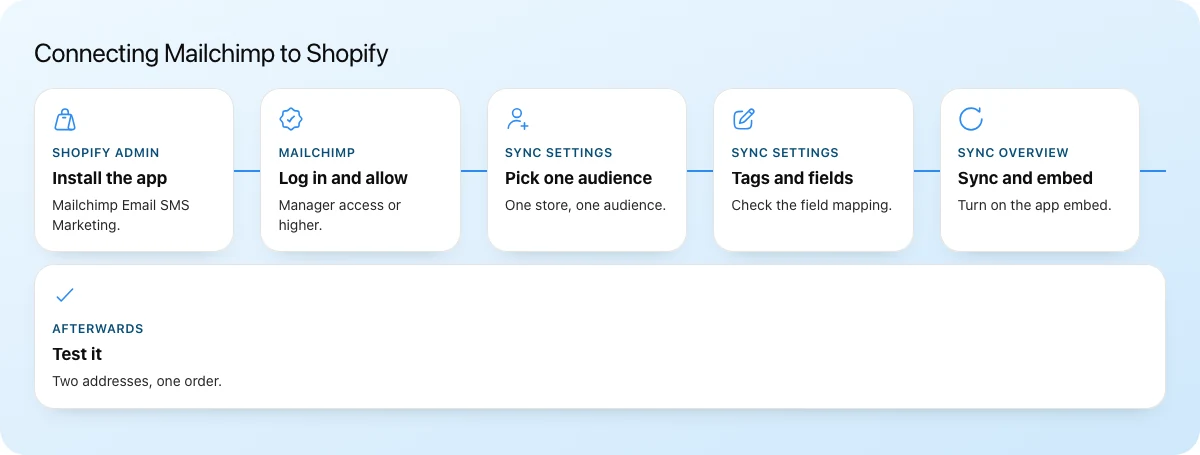
- In Mailchimp, open the Mailchimp for Shopify app page and click "Get started", or search for Mailchimp in the Shopify App Store. Log in to your store.
- Click "Install", review the data the app asks to access, then click "Install app".
- Click "Login" to link your Mailchimp account, or "Create account" if you do not have one. Enter your credentials, review the connection details and click "Allow".
- Review the sync settings. Use the "Linked Audience" dropdown to change the audience, confirm which contact types to sync, tick "Sync all tags" or pick tags one by one, and click "Edit" under data fields to check how Shopify fields map to Mailchimp fields.
- Click "Sync now".
- On the "Sync overview" page, click "Turn on" in the "Enable Mailchimp App Embed" banner. On the theme settings page, make sure the embed switch is on, then click "Save".
The initial sync runs in the background. Mailchimp says its length depends on your account data and the number of orders in your store. When it finishes, totals appear next to products, customers and orders on the Mailchimp app page in your Shopify admin.
Step 6 is the one people skip. To turn on the Mailchimp app embed is what lets storefront events reach Mailchimp, and a later theme change can switch it off again. Check it each time you change themes.
Switching from the legacy Mailchimp app
If you used Mailchimp for Shopify [Legacy], the order matters. Pause the legacy automations, install the current app and sync your audience, then run Mailchimp's migration step and resume. Welcome and other subscriber-based automations must be recreated in the new app. Mailchimp also states that the classic abandoned cart series does not migrate for now, so plan to rebuild it. Finish by disconnecting the legacy app; Mailchimp asks you to type DISCONNECT to confirm.
What syncs between Mailchimp and Shopify, in both directions
Mailchimp's syncing documentation says most data fields sync in near real time. Discount codes are the exception: Mailchimp's syncing page says every few hours and its dashboard guide says once a day, and both point to a manual Resync button.
| Data | Direction | What to know |
|---|---|---|
| Customers and their profile fields | Shopify to Mailchimp | Existing customers are added on the first sync, new ones as they arrive; check the mapping under Data fields |
| Subscription status | Both directions | A contact already opted in on Mailchimp is set to subscribed, whatever Shopify says |
| Orders and products | Shopify to Mailchimp | Feed revenue reports, product blocks and recommendations |
| Customer tags | Shopify to Mailchimp | Optional: all tags or a selection |
| B2B company | Shopify to Mailchimp | Stored in a merge tag called "Shop B2B Company" |
| Discount codes | Mailchimp to Shopify | Created in Mailchimp's Discounts tab; automatic sync plus manual Resync in the Discount Codes tab |
| Storefront events (9) | Shopify to Mailchimp | Need the app embed; reduced when GDPR or CCPA policies are on |
| Email and SMS engagement (5) | Mailchimp to Shopify | Received, opened and clicked events |
| New Mailchimp contacts as Shopify customers | Mailchimp to Shopify | Only if Create New Customers is activated |
| SMS subscribers | Shopify to Mailchimp | Needs an approved Mailchimp SMS program |
The nine storefront events Mailchimp lists are product_viewed, search_submitted, product_added_to_cart, product_removed_from_cart, cart_viewed, payment_info_submitted, checkout_started, checkout_completed and collection_viewed. In the other direction, Shopify receives email_received, email_opened, email_clicked, sms_received and sms_clicked.
One rule surprises merchants after the first sync: a contact already opted in on Mailchimp stays subscribed, even if Shopify shows that customer as not subscribed. That is expected behavior. If your old Mailchimp list came from a source you no longer trust, clean it before you connect.
Test your Shopify Mailchimp integration in 15 minutes
A connected app is not the same as a working one. Use two test addresses you control (A and B) and a test payment method, then run this list once.
- Totals: open the Mailchimp app in your Shopify admin and confirm the totals for products, customers and orders look right.
- Subscriber: sign up on your storefront with address A and tick the marketing box. It should appear in the audience as subscribed, with the tags you chose.
- Non-subscriber: place a test order with address B and leave the box unticked. If you sync non-subscribed contacts, B appears without marketing consent and must not receive campaigns.
- Cart: with address A, add a product to the cart, start checkout and leave. If your abandoned cart flow is on, check that A enters it.
- Order: complete a test order with address A and check that the order shows up in Mailchimp.
- Unsubscribe: unsubscribe A from a Mailchimp email, then open that customer in Shopify and check the email marketing status changed.
- Logs: read the Activity Logs tab of the Mailchimp app in Shopify. It shows recent syncs and customer updates.
If step 4 fails, look at the app embed first. If step 6 fails, the two-way status sync is not doing its job and support should hear about it.
The first three flows to build with Shopify data
The integration is only plumbing. The value comes from flows that use the store data it delivers. Start with these three, all of which need a paid Mailchimp plan.
| Flow | Shopify data it uses | Starting timing to test | Subject line to copy |
|---|---|---|---|
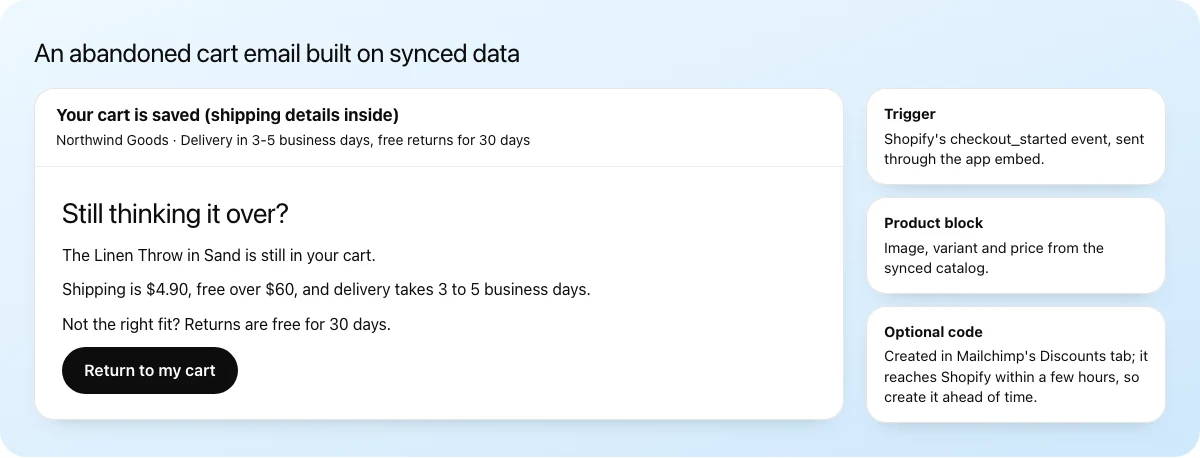
| Abandoned cart | checkout_started, cart contents, products | 1 to 4 hours after the checkout is abandoned, then 24 hours | Your cart is saved (shipping details inside) |
| Welcome | New subscribed contact, signup source | Right after signup, a second email 2 to 3 days later | Welcome to {store}: where to start |
| Post-purchase | checkout_completed, order and products | A few days after the order | Getting the most from your {product} |
Two limits shape these flows. Mailchimp's discount content blocks work only in automation emails, so a unique code belongs in the flow, not in a one-off campaign. And Essentials caps flows at four steps. Map your sequence in Mailchimp's builder before you pick that plan, because a multi-email abandoned cart flow with waits can outgrow it. For the full sequence logic and copy, see our abandoned cart email guide and these abandoned cart subject lines to test, and our Shopify email automation playbook for the order in which to build everything else.
The post-purchase email shows best what order data adds. Slide to compare a generic thank-you with one built from the synced order:
Thanks for choosing the Linen Throw in Sand.
Wash it cold and let it air dry: the linen softens with every wash.
It pairs well with the Sand Cushion Cover.
Read the care guideThank you for shopping with us.
Check out our new arrivals.
Shop nowFor timing and more examples, see our guide to post-purchase emails that bring customers back.
Fixing common Mailchimp to Shopify sync problems
When something looks off, open the Activity Logs tab first, then match the symptom below.
| Symptom | Likely cause | Fix |
|---|---|---|
| Customers missing from the audience | Initial sync still running, or non-subscribed contacts not synced | Wait for the totals, then check the sync toggles under Integrations, Manage, Shopify |
| Abandoned cart flow never sends | App embed off after a theme change, flow paused, Free plan, or no email typed | Turn the embed back on in the theme editor's App embeds, confirm the flow is active on a paid plan |
| New subscribers get two welcome emails | An old welcome automation was resumed | Keep one welcome flow, rebuilt in the current app |
| Two order confirmations per order | Mailchimp's order confirmation turned on next to Shopify's | Turn off Mailchimp's: Shopify's confirmation cannot be turned off |
| Mailchimp discount code rejected at checkout | Code not synced yet | Wait a few hours, or click Resync under Discount Codes |
| Leads appear in Shopify as customers | Create New Customers is activated | Deactivate it in the app's Settings tab if you do not want this |
| Subscribed in Mailchimp, not in Shopify | Contact was opted in on Mailchimp before the connection | Expected; check where that consent came from |
| Two stores mixed in one audience | Both stores linked to the same audience | Reconnect the second store to its own audience |
To disconnect for good, go to Integrations, Manage, Shopify in Mailchimp, click Manage app and choose Disconnect site. Mailchimp asks whether to keep or remove your Shopify data. Then uninstall the app from Shopify.
What Mailchimp for Shopify costs, and when an alternative fits better
The app itself is free. Mailchimp's plans, as listed on its Shopify App Store page and pricing page in November 2026, are priced by contacts:
- Free: $0 for up to 250 contacts and 500 sends a month (250 a day), with no automation flows.
- Essentials: from $13 a month, with flows of up to four steps and an SMS add-on.
- Standard: from $20 a month, with flows of up to 200 steps, send-time optimization and behavioral targeting.
- Premium: from $350 a month, with advanced segmentation and multivariate testing.
Two details matter for Shopify stores. Mailchimp is billed separately from your Shopify invoice, and it charges extra when you go over your contact or send limits.
Mailchimp is a sensible choice if you already have a Mailchimp audience and templates, or if you want landing pages, pop-up forms and SMS in the same tool. It is a weaker fit if you need ecommerce flows without paying, or want reviews and loyalty data inside your emails. Here is how it compares with three Shopify-focused options. Trio is our product.
| Point | Mailchimp | Shopify Messaging | Omnisend | Trio (our app) |
|---|---|---|---|---|
| Free plan | 250 contacts, 500 sends a month | First 10,000 emails a month free | 250 contacts, 500 emails a month | 250 contacts, 500 emails a month |
| Automations on the free plan | ✗ | ✓ | ✓ | ✗ |
| First paid step | Essentials from $13 a month | $1 per 1,000 emails after 10,000 | Standard $16 a month | Starter $29 a month |
| Billing | Separate, by Intuit Mailchimp | On your Shopify bill | Separate, by Omnisend | On your Shopify bill |
| SMS | Add-on | ✓ | Pro plan | ✗ |
| Pop-up forms | ✓ | Via Shopify Forms | ✓ | ✗ |
| Product reviews built in | ✗ | ✗ | ✗ | ✓ |
| Loyalty program built in | ✗ | ✗ | ✗ | ✓ |
Plans and features as listed on each vendor's Shopify App Store page and pricing page, checked November 25, 2026. One detail favors Shopify Messaging for cart recovery: Shopify's help center states that abandoned checkout emails are always free, and they do not need a separate tool. Klaviyo is the other big name: its free plan also stops at 250 active profiles and 500 emails a month, and its Email plan starts at $20 for 500 profiles. Our Klaviyo pricing breakdown and Omnisend pricing guide go plan by plan, and our roundup of the best email marketing apps for Shopify stores compares the field.
If you would rather not run a separate email tool
Trio is not a Mailchimp add-on. It is a Shopify app that puts email marketing, product reviews and a loyalty program in one place, with the same customer data. Contacts sync from your Shopify customers, and you can import a CSV of the subscribers you export from Mailchimp. Import only the people who opted in.
Automations (welcome, post-purchase, abandoned checkout, win-back, birthday) start on Starter at $29 a month, with a 14-day free trial; the Free plan covers campaigns. Every Trio email can show the customer's points balance and quotes from your reviews. Be clear about the limits too: Trio is email-only, has no pop-ups (only an email-capture section you place in your theme), and sending from your own domain starts on Scale. See Trio's plans for the full table.

Whichever tool you keep, the checklist does not change: one audience per store, consent carried over honestly, the tracking embed switched on, and a test run before the first real flow goes live.
Frequently asked questions
- Does Mailchimp still integrate with Shopify?
- Yes. The official app is listed on the Shopify App Store as "Mailchimp Email SMS Marketing" by Intuit Mailchimp. The older Mailchimp for Shopify [Legacy] app is being replaced: Mailchimp publishes a switch guide, and tutorials that walk through the legacy screens no longer match what you will see.
- Is the Mailchimp Shopify integration free?
- The app is free to install and Mailchimp has a Free plan with 250 contacts and 500 sends a month (250 a day). That plan has no automation flows, so abandoned cart and welcome flows need Essentials (from $13 a month) or higher. Mailchimp bills you separately from your Shopify invoice.
- What data does Mailchimp pull from Shopify?
- Customers with their subscription status, orders, products, B2B company names, optional customer tags and nine storefront events such as product viewed, product added to cart and checkout started. Most fields sync in near real time. You can check exactly which Shopify fields map to which Mailchimp fields under Data fields before the first sync.
- Does Mailchimp sync data back to Shopify?
- Partly. Mailchimp sends email and SMS engagement events (received, opened, clicked) to Shopify and can update subscription status there: on the first sync, a contact already opted in on Mailchimp is set to subscribed in Shopify. New Mailchimp contacts become Shopify customers only if you activate the Create New Customers setting.
- Can I connect more than one Shopify store to one Mailchimp account?
- Yes. Each store connects to one audience, and Mailchimp's setup guide says to repeat the setup for the second store and recommends a separate audience for it, so the two customer bases do not mix.
- Why is my Mailchimp abandoned cart email not sending?
- Check that the Mailchimp app embed is still on in your theme (a theme change can switch it off), that you are on a paid plan, that the flow is active and that the shopper actually typed an email. Store privacy settings that limit customer events can also reduce what Mailchimp receives.
- Why do customers get two welcome emails after connecting Mailchimp?
- Usually because a welcome automation that existed before the connection was resumed. Mailchimp recommends pausing old welcome flows before you connect, then rebuilding them in the new app instead of unpausing them.
- How do I disconnect Mailchimp from Shopify?
- In Mailchimp, go to Integrations, Manage, Shopify, click Manage app and choose Disconnect site. You can keep or remove the Shopify data in Mailchimp. Then uninstall the app from your Shopify admin.
- Should I connect Mailchimp and Shopify with the official app or with Zapier?
- Use the official app for almost every store: it syncs customers, orders, products, discount codes and storefront events, and it is free to install. A Zapier or Make connector only fits a narrow need the app does not cover, such as tagging contacts from a custom rule, and it adds a second subscription.
- Is Mailchimp a good email tool for Shopify stores?
- It suits stores that already have a Mailchimp audience, or that want landing pages, pop-up forms and an SMS add-on in one tool. If you want ecommerce flows on a free plan, or reviews and loyalty data inside your emails, compare Shopify Messaging, Omnisend, Klaviyo or an all-in-one app first.
Related articles
Set up a Shopify newsletter step by step: signup form, consent, sender domain, Shopify Messaging costs and a copyable template. Send your first issue …
November 25, 2026Email marketingAbandoned cart email subject lines: 20 examples, sorted by reminderCopy 20 abandoned cart email subject lines sorted by reminder, with preheaders, real send data and a simple way to test them on Shopify. Pick your thr…
November 25, 2026Email marketingAbandoned cart email: the complete guide for Shopify stores (2026)Write an abandoned cart email that recovers orders: timing, a 3-email sequence to copy, discount break-even math, compliance and Shopify setup. Start …
November 25, 2026