


Shopify newsletter: how to set up signups and send your first issue

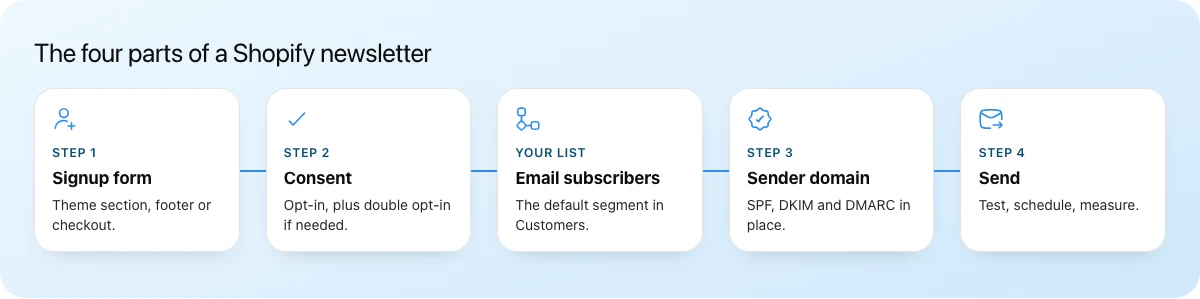
- A Shopify newsletter needs four parts, a signup form, consent settings, an authenticated sender domain and a sending tool. Shopify covers all four natively with the theme's Newsletter section and Shopify Messaging, formerly Shopify Email.
- Shopify Messaging includes 10,000 free emails a month on eligible plans, then $1 per 1,000. For a newsletter alone, it is usually the cheapest option.
- Send on a steady schedule. A big monthly blast after weeks of silence is the pattern mailbox providers throttle, so split large sends across a day or two.
A Shopify newsletter is the email you send to subscribers on a regular schedule: new products, guides, restocks, offers. Shopify gives you everything needed to run one without installing anything, but the setup is spread across four places in the admin, and the most common mistakes (a sender address rewritten to shopifyemail.com, a monthly blast that lands late) only show up after the first send.
This guide walks through each step with the exact menu paths, a newsletter template you can copy into Shopify Messaging, a cost table by list size, and the sending pattern Shopify's own deliverability guidance warns against. For flows, metrics and the wider strategy, see our ecommerce email marketing guide.
What a newsletter on Shopify needs: the four parts
Every newsletter on Shopify, whatever tool sends it, runs through the same four parts. Skip one and the others stop working.
- A signup form that collects addresses with consent: a theme section, the footer, a pop-up or the checkout checkbox.
- Consent settings that record who agreed to marketing, with double opt-in where your audience requires it.
- An authenticated sender domain, so Gmail and Yahoo accept mail from your own address.
- A sending tool to write, test and schedule the issue: Shopify Messaging or an email app.
Step 1: add a newsletter signup form to your Shopify store
Start with the form, because a newsletter with no subscribers has nothing to send. On Shopify you have three native places to collect addresses.
The theme's Newsletter section
In your admin, go to Online Store, click Edit theme on your live theme, pick the template (usually the home page), click Add section and choose Newsletter. Some themes call it Email signup. Edit the heading, the text and the form block, then save. Many themes also have an email signup option in the footer settings, which puts the form on every page.
The checkout checkbox
Checkout is where intent is highest. Go to Settings > Checkout, find the Marketing opt-in section, select Email and choose where the checkbox appears: checkout only, the sign-in page only, or both.
A pop-up with Shopify Forms
Themes do not include pop-ups. The free Shopify Forms app adds them (it is not installed by default) and can attach a discount to the signup. Email apps such as Klaviyo and Omnisend include their own forms.
What the form should say
What the form says matters as much as where it sits. "Subscribe to our newsletter" promises nothing. Say what people get and how often:
Heading:  New roasts, first.
Text:     One email every other Thursday: the new roast, how to brew it,
          and early access before it sells out. Unsubscribe anytime.
Button:   Sign me up
Success:  Check your inbox to confirm your subscription.
The frequency line does real work. People who know they will get two emails a month are less likely to mark the third as spam.
Step 2: set up consent, double opt-in and your subscriber list
Shopify records marketing consent for each customer. Only people who accepted marketing should receive your newsletter, and Shopify Messaging only emails customers who did.
Turn on double opt-in where it matters
With double opt-in, a new subscriber gets a confirmation email and must click a link before they count as subscribed. Some countries require it by law, and everywhere it filters out typos and bot signups. To turn it on:
- Go to Settings > Notifications > Customer notifications.
- In the Marketing double opt-in section, select the customer marketing confirmation. The Online Store sales channel must be installed.
- Change your form's success message to "Check your inbox to confirm". In Online Store, open the theme menu, click Edit default theme content and look for Confirmation under Newsletter form, or Post success under Sign up.
People who subscribed before you activated it do not need to confirm. Keep the confirmation email free of marketing; Shopify's help center says so for legal reasons.
Find and clean your list
Your subscribers live in Customers, in the default Email subscribers segment. Check it after your first test signup to confirm the form works.
If you are bringing a list from another tool, import it as a customer CSV with each contact's consent status, and keep it clean:
- Never import a bought list. Shopify's Terms of Service prohibit it, and it wrecks your sender reputation.
- Remove role addresses such as info@ or support@, which nobody reads.
- Leave out contacts whose consent you cannot trace. Shopify suggests waiting until your reputation is established, then sending them one clear opt-in email.
- Drop anyone who bounced, complained or unsubscribed in the old tool.
Step 3: authenticate your sender email before the first send
This step causes more confused support threads than any other. Since February 2024, Gmail and Yahoo require senders using a branded address to authenticate their domain and publish a DMARC record. If you skip it, Shopify keeps your emails flowing by rewriting the sender to an address like store+123@shopifyemail.com. Your newsletter still arrives, but from an address subscribers do not recognize.
To send from your own domain:
- Go to Settings > Notifications and enter your address in the Sender email section, for example hello@yourstore.com.
- Add the CNAME records Shopify gives you to your domain's DNS. They handle SPF and DKIM; you do not need a separate SPF record for this.
- Add a DMARC record. A monitoring policy (p=none) is a common starting point.
- Wait for verification. Shopify says authentication can take up to 48 hours.
Two details save trouble later. Avoid "no-reply" in the sender address, because some mail hosts reject it. And use an address someone reads: replies to a newsletter are some of the most useful feedback a small store gets.
Step 4: how to create a newsletter on Shopify with Shopify Messaging
With the list and the domain ready, the send itself takes ten minutes. These are the steps in Shopify's guide to creating Shopify Messaging campaigns, condensed:
- Go to Apps > Messaging and click Create message.
- Pick a template, or choose Code your own to paste or import HTML.
- In the To field, select All subscribers, or a segment such as subscribers in one country.
- Write the subject line. It doubles as the campaign name in your list.
- Add preview text: the line inboxes show after the subject.
- Edit the body. Hover between sections and click + to add one; click a section to edit or delete it.
- Personalize if useful. You get up to 2 personalization values in the subject and preview text, and up to 10 in the body. Always set a default value, or the space stays blank.
- Click Send test. You can enter up to 5 addresses, so include a Gmail and an Outlook inbox.
- Click Review, then Schedule send. Choose the time marked Suggested, Send now, or a custom date and time.
Four surprises after a first send, all documented in Shopify's help center or changelog:
- It does not proofread. Read the test email on your phone before you schedule.
- It does not attach files. Upload a PDF to your store files and link to it.
- It does not translate. Write separate issues and send each to a language segment.
- It may not email your whole list. Smart delivery, a built-in setting Shopify added in 2026, can hold back subscribers who have not opened your recent emails. If the recipient count looks lower than your Email subscribers segment, check that setting first.
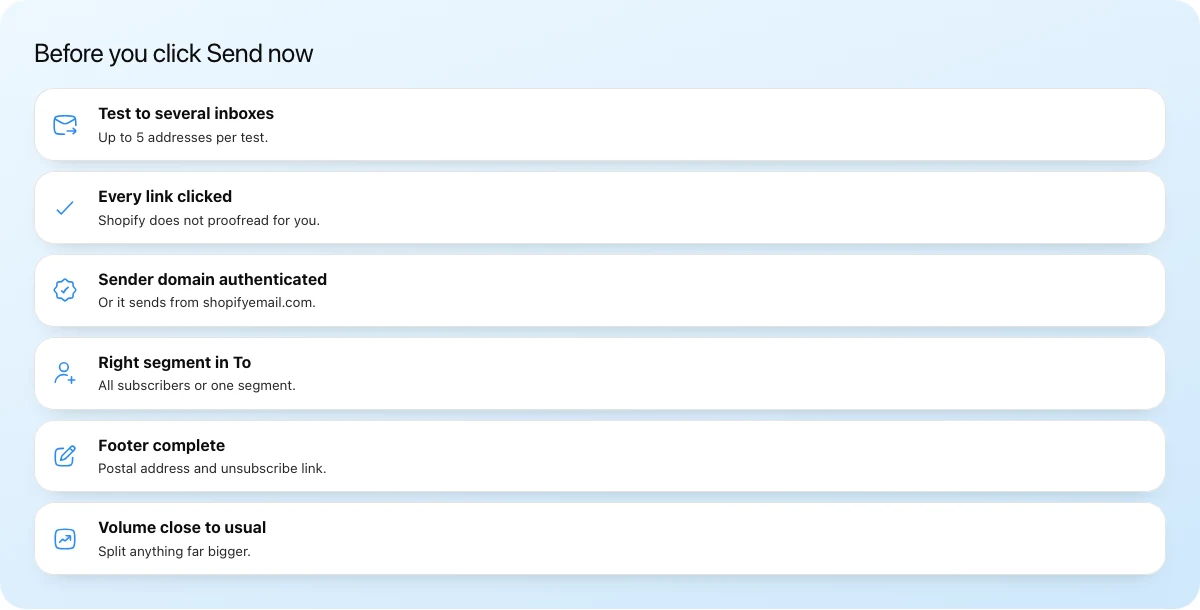
On the legal side, US recipients are covered by CAN-SPAM. The FTC's CAN-SPAM compliance guide requires a valid postal address, a clear way to opt out and opt-outs honored within 10 business days. Shopify Messaging puts your store address in the footer by default. EU, UK and Canadian rules are stricter, and this is not legal advice.
A Shopify email newsletter template you can copy
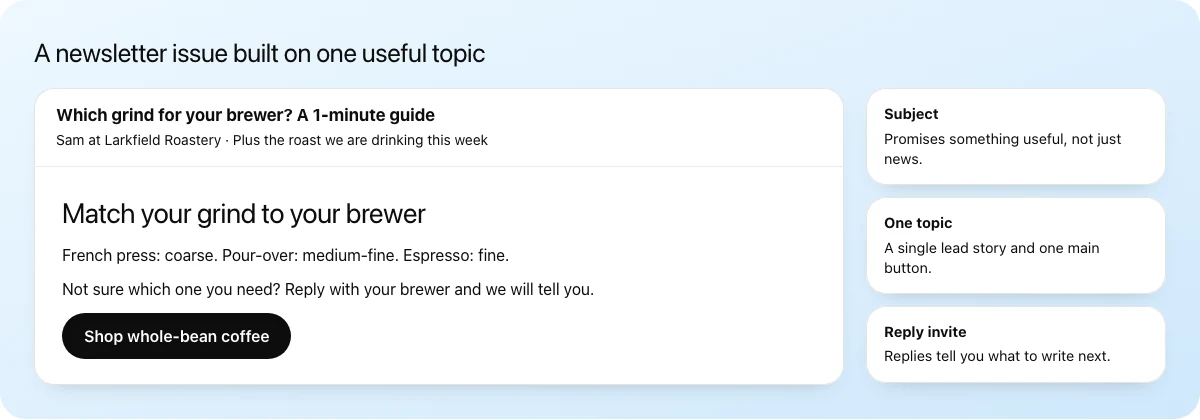
Most newsletters that get ignored share one flaw: they try to say everything. A single lead story with one button beats a digest of six updates. Here is a structure that works for most stores, mapped to the section types in the Shopify Messaging editor:
Subject:  {the one thing} + {why now}
Preview:  a second reason to open (adds to the subject, never repeats it)

1. Header ............ logo only, no navigation bar
2. Image with text ... the lead story in 60-90 words: one product,
                       one restock or one guide
3. Button ............ one action, named: "Get the Ethiopia roast"
4. Text .............. one customer review of that product, in quotes
5. Product ........... two or three related picks (static products)
6. Text .............. a useful extra: a tip, a recipe, a care guide
7. Footer ............ postal address, unsubscribe, preferences
Build it once, then save it as a reusable template in Shopify Messaging. Each new issue then starts from your layout instead of a blank page, which is what keeps a weekly or biweekly rhythm sustainable.
Running out of topics is the main reason newsletters stop. These Shopify newsletter ideas come from data your store already has:
- Support questions: the question you answered three times this month becomes the lead story.
- Three-star reviews: what customers misunderstood tells you what to explain (sizing, care, how to use).
- Restocks and new arrivals: one product, why it is back, who it suits.
- How-to and care guides: grind charts, size guides, routines; the issues people save.
- Behind the scenes: a new supplier, a packaging change, a mistake you fixed.
- Seasonal edits: a gift guide or a "what we use in winter" pick of three products.
Rotate them so not every issue is a discount, or subscribers learn to wait for the next code.
The difference between a skipped issue and an opened one is usually the first two lines. Drag the slider:
Roasted Monday, back in stock today.
Our roaster's ratio: 18 g of coffee to 300 ml of water, poured over 3 minutes.
Get the Ethiopia roastHi there! Here is what is new at our store this month. Check out our latest products and enjoy browsing!
Visit our storeHow often to send a Shopify newsletter, and the monthly trap
The common advice is "send monthly so you do not annoy people". It hides a deliverability problem. Shopify's page on email sending volume and warm-up lists the patterns that make Gmail, Yahoo and Outlook defer or throttle mail. Two of them describe a typical monthly newsletter: long gaps followed by large sends, and a single day at several times your normal volume.
That does not mean you must send weekly. It means your cadence and your sending method have to match:
| Cadence | Good fit for | How to send it |
|---|---|---|
| Weekly | Stores with new products or content most weeks | Same day and time; similar list size each issue |
| Every two weeks | Most small stores | Same as weekly; the easiest rhythm to sustain |
| Monthly | Slow-moving catalogs, considered purchases | Split the send across two days, engaged subscribers first |
For a monthly issue, Shopify suggests sending 50% of the list on day one and the rest on day two, or a quarter of the list every six hours. In Shopify Messaging that means two segments that do not overlap: build them in the segment editor, check the recipient count on each, and schedule them a day apart. Subscribers who opened or clicked in the last three months make a good first group.
Two more rules from the same guidance. When your list grows fast, raise volume by 20 to 30% a week at most. And before a big sale period, start increasing volume four to six weeks ahead, so the peak does not look like a spike.
A newsletter also does not need to carry your whole program. Welcome and abandoned checkout emails run on their own; our guide to Shopify email automation covers the setup, and the abandoned cart email and post-purchase email guides cover the content.
How to measure a Shopify newsletter after each send
Shopify Messaging reports opens, clicks and unsubscribes for every campaign. Read them per issue, not as a monthly average, so you can tell which topic worked:
| Signal | What it tells you | What to change next issue |
|---|---|---|
| Click rate | Whether the lead story and button earned attention | Test a different lead topic or a clearer button label |
| Open rate | A rough read on the subject line only | Treat with caution: Apple Mail can load emails automatically and count opens nobody made |
| Unsubscribes | Whether the topic or the frequency missed | A spike after one issue points at that issue, not at email in general |
| Recipients vs segment size | Whether everyone you chose was emailed | If lower, check Smart delivery, bounces and consent |
| Replies | What subscribers actually care about | Turn the most common reply into a future lead story |
Compare click rate issue to issue, since open rate is the least reliable of the five. And resist resending the same issue to everyone who did not open: it doubles volume on your least engaged readers, the exact pattern the volume guidance above warns about. If you do it, limit it to recent engagers, as our guide to resending emails to non-openers explains for Klaviyo; the same logic applies in Shopify Messaging.
What a Shopify newsletter costs: Shopify Messaging vs email apps
Shopify Messaging charges by emails sent. Most apps charge by contacts. That difference decides the bill.
Here is what a weekly newsletter (four issues a month) costs at different list sizes. We computed the Shopify Messaging column from Shopify's published rates. The other columns show the cheapest plan that holds the list, from each vendor's pricing page, checked on November 25, 2026. Trio is our product.
| Subscribers | Emails a month | Shopify Messaging | Trio | Klaviyo (Email plan) |
|---|---|---|---|---|
| 1,000 | 4,000 | $0 | $29 (Starter) | $30 |
| 2,500 | 10,000 | $0 | $79 (Growth) | $60 |
| 5,000 | 20,000 | $10 | $79 (Growth) | $100 |
| 10,000 | 40,000 | $30 | $199 (Scale) | $150 |
| 25,000 | 100,000 | $90 | $199 (Scale) | $400 |
For a newsletter alone, Shopify Messaging is the cheapest at every size in this table. Keep in mind that its automations also draw on the free 10,000 (abandoned checkout emails excepted). Contact-based tools cost more because they bundle more. Klaviyo adds SMS, predictive analytics and forms; its price climbs with active profiles, as our Klaviyo pricing breakdown shows. Trio includes product reviews and a loyalty program in every plan.
What each tool brings to a newsletter, beyond price:
| Newsletter need | Trio | Shopify Messaging | Klaviyo | Omnisend |
|---|---|---|---|---|
| Free allowance | 250 contacts, 500 emails/mo | 10,000 emails/mo | 250 profiles, 500 emails/mo | 250 contacts, 500 emails/mo |
| Signup pop-ups | no (inline section) | Via Shopify Forms | ✓ | ✓ |
| SMS | ✗ | ✓ | yes (add-on) | yes (Pro plan) |
| Review quotes in the email | ✓ | ✗ | Via Klaviyo Reviews | Via a reviews app |
| Built-in loyalty program | ✓ | ✗ | ✗ | ✗ |
| Customer's points balance in the email | ✓ | ✗ | Via a loyalty app | Via a loyalty app |
Each has a real strength, so pick by situation rather than by feature count:
| Your situation | Best fit for the newsletter | Why |
|---|---|---|
| A newsletter plus a welcome and an abandoned checkout email | Shopify Messaging | 10,000 free emails a month, no extra app, billed on your Shopify invoice |
| You want pop-ups, spin-to-win and SMS in the same tool | Omnisend | Forms and 24/7 support on every plan, SMS on Pro |
| Heavy segmentation, predictive analytics, SMS | Klaviyo | The deepest data tools, priced by active profiles |
| A free tool with landing pages | Mailchimp | Free plan for 250 contacts, but no automation flows |
| You also need product reviews and a loyalty program | Trio | One app, and each issue can carry review quotes and points balances |
Our Mailchimp Shopify integration guide covers that setup, and our roundup of the best email marketing apps for Shopify stores covers the wider field.
Trio fits stores that want the newsletter to carry more than products. Every Trio email can show the customer's points balance and quotes from your reviews, and the editor has drag-and-drop review quote, product grid and coupon blocks, with more than 40 ready-made designs. Campaigns are on every plan, including Free; segments start on Starter, and A/B tests of subject lines start on Growth. Contacts sync from Shopify with their marketing consent, and every marketing email carries an unsubscribe link and a preferences page. Trio is email-only (no SMS), has no pop-ups, and sending from your own domain starts on Scale. Compare Trio's plans before you choose, and see the Trio email marketing module for the full feature list.

Whatever tool you pick, the order stays the same: form, consent, domain, then a first issue you could send again next month. Get the first one out this week, then improve one part per issue.
Frequently asked questions
- Does Shopify have a built-in newsletter tool?
- Yes. Most themes include a Newsletter or Email signup section to collect addresses, and Shopify Messaging, Shopify's own app formerly called Shopify Email, sends campaigns from your admin. Stores on the Basic, Grow, Advanced and Plus plans get 10,000 free emails a month.
- How do I create a newsletter on Shopify?
- Add a signup section in the theme editor, turn on the marketing opt-in at checkout, and authenticate your sender domain. Then go to Apps, Messaging, click Create message, pick a template, choose All subscribers in the To field, send yourself a test and schedule it.
- Is Shopify Email still free?
- Shopify Email is now called Shopify Messaging. Every month the first 10,000 emails are free on eligible plans, then extra emails cost $1 per 1,000 up to 300,000. Automations count toward the 10,000, except abandoned checkout emails, which are always free.
- Where do I find my newsletter subscribers in Shopify?
- Open Customers in your Shopify admin and click the default Email subscribers segment. Anyone who signed up through your theme form, the checkout checkbox or the sign-in page and accepted marketing appears there.
- Why do my Shopify newsletters come from a shopifyemail.com address?
- Since February 2024, Gmail and Yahoo require domain authentication and a DMARC record for branded senders. If your domain is not authenticated, Shopify rewrites your sender to an address like store+123@shopifyemail.com. Add Shopify's CNAME records and a DMARC record to send from your own domain.
- How often should I send a Shopify newsletter?
- Pick a rhythm you can keep for a year, such as weekly or every two weeks, and keep the list size similar from send to send. Shopify's own guidance warns that long gaps followed by large sends can get emails delayed or blocked, so if you send monthly, split the send across two days.
- Can I add a newsletter pop-up on Shopify?
- Yes, with the free Shopify Forms app, which is not installed by default, or with a third-party email app that includes pop-ups. Trio, our app, does not offer pop-ups; it adds an inline email-capture section to your theme instead.
- Can I import an existing email list into Shopify?
- Yes, as a customer CSV with each contact's marketing consent. Only import people who opted in, since purchased lists break Shopify's Terms of Service, and leave out role addresses such as info@ or support@ plus anyone whose consent you cannot confirm.
- Do I need double opt-in for a Shopify newsletter?
- It depends on where your subscribers live, and some countries require it by law. Even where it is optional, it filters out typos and bots. Turn it on in Settings, Notifications, Customer notifications, in the Marketing double opt-in section.
- Should I use Shopify Messaging or an email marketing app for my newsletter?
- Shopify Messaging is enough if you mainly send a newsletter and a few basic automations. Choose an app when you need pop-ups, advanced segments or SMS, or, in Trio's case, when you want reviews and loyalty points inside the same emails.
Related articles
Connect Mailchimp to Shopify step by step: what syncs both ways, consent settings, a 15-minute test plan, fixes for sync errors and real costs. Set it…
November 25, 2026Email marketingAbandoned cart email subject lines: 20 examples, sorted by reminderCopy 20 abandoned cart email subject lines sorted by reminder, with preheaders, real send data and a simple way to test them on Shopify. Pick your thr…
November 25, 2026Email marketingAbandoned cart email: the complete guide for Shopify stores (2026)Write an abandoned cart email that recovers orders: timing, a 3-email sequence to copy, discount break-even math, compliance and Shopify setup. Start …
November 25, 2026